Related Articles
Keeping digital files organized can make a big difference in the way we work, study, and manage our personal information. I have noticed that when files are saved randomly in different folders, finding one important document later can become frustrating. This is why I believe learning how to organize files is a useful skill for everyone, especially beginners.
The good thing is that we do not always need expensive software to manage our files. There are many free file organization tools for beginners that can help us arrange documents, pictures, videos, projects, and other important files in a simple way.
In this article, I will share some useful free tools and methods that beginners can use to keep their digital files clean and easy to find.
Why File Organization Is Important
Before talking about tools, I think it is important to understand why file organization matters. A computer can store thousands of files, but storing files is not the same as organizing them.
When everything is placed in one folder, finding a particular file can take a lot of time. For example, if I have hundreds of images in my Downloads folder, searching for one specific picture can be difficult.
A good file organization system helps me save time and reduces unnecessary stress. It also makes backups easier because I know exactly where important files are located.
For students, employees, freelancers, and small business owners, proper file management can make everyday work much more convenient.
1. Windows File Explorer
One of the easiest free file organization tools for beginners is already available on most Windows computers. It is called File Explorer.
File Explorer allows me to create folders, rename files, move documents, copy folders, delete unnecessary items, and search for files. Beginners do not need to install additional software to start organizing their computers.
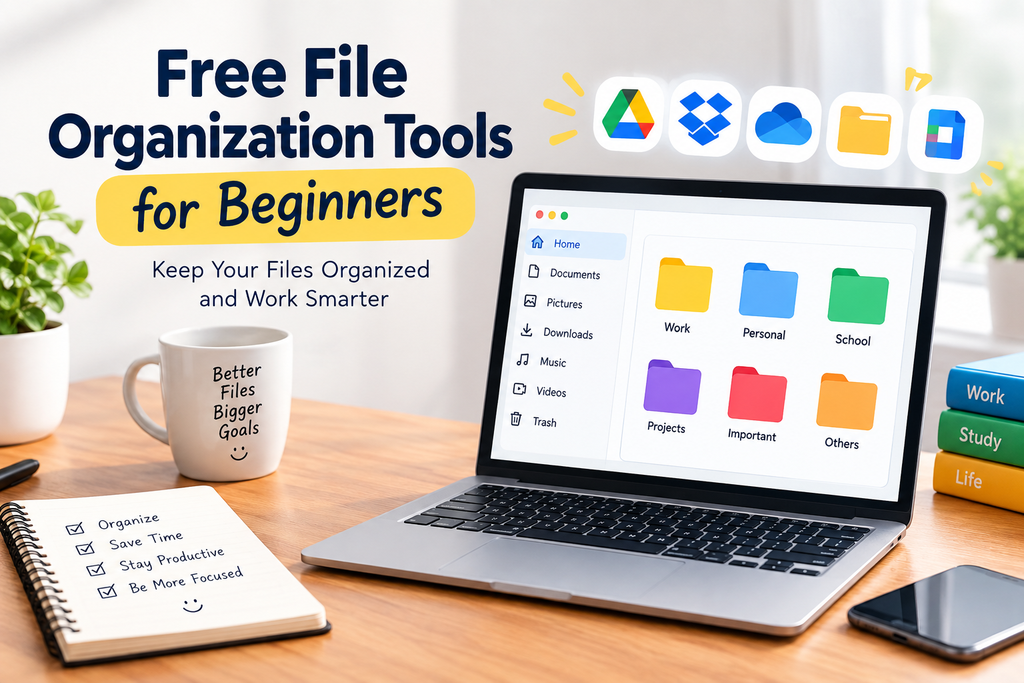
I usually recommend creating simple main folders such as Documents, Pictures, Videos, Work, School, Personal, and Projects.
Inside these folders, smaller folders can be created when necessary. For example, a School folder can contain folders for different subjects or semesters.
The biggest advantage of File Explorer is its simplicity. It provides all the basic features needed for everyday file management without requiring complicated settings.
2. Google Drive
Google Drive is another useful option for beginners who want to organize files online.
With Google Drive, files can be stored in folders and accessed from different devices. I find cloud storage particularly useful when I need to work on documents from both a computer and a smartphone.
Users can create folders for work, education, personal documents, images, and other categories. Files can also be renamed and moved between folders.
Another useful feature is search. Instead of manually checking every folder, I can search for a file by its name or other available information.
Google Drive also makes file sharing convenient. This can be useful for students working on group assignments or people collaborating on projects.
3. OneDrive
Microsoft OneDrive is another popular cloud storage option. It can be especially convenient for people who already use Microsoft services.
OneDrive allows users to create folders and organize documents online. Files can be synchronized across supported devices, which means changes made to a file can become available on other connected devices.
I think OneDrive is a good choice for beginners because the interface is relatively straightforward. Instead of keeping everything on a computer, important files can also be stored in the cloud.
However, I recommend checking your available storage before moving large collections of videos or other large files to cloud storage.
4. Dropbox
Dropbox is another familiar name in cloud file management. Its main purpose is to make storing, accessing, and sharing files easier.
Beginners can create folders according to different types of content. For example, a user might create separate folders for Work Documents, Personal Files, Photos, and Projects.
Dropbox can also be useful when files need to be accessed from different devices. Instead of sending files to yourself through email repeatedly, cloud storage can provide a more organized solution.
The free plan has storage limitations, so I would suggest using it mainly for important files and smaller collections unless additional storage is needed.
5. Google Photos
For people who have thousands of pictures, Google Photos can be useful for photo organization.
Instead of keeping every picture inside random computer folders, photos can be stored and organized through a dedicated photo management service.
I especially like the idea of separating photos from regular documents. Pictures from family events, trips, school activities, and personal projects can quickly become difficult to manage when everything is mixed together.
Using a dedicated photo service can make browsing and finding pictures more convenient.
6. Notion
Notion is slightly different from traditional file management software, but I think it can be very useful for organizing information related to files.
For example, I can create a workspace for a project and maintain a list of important documents, website links, notes, deadlines, and other information in one place.
Notion can be helpful for students and people working on multiple projects because it combines notes and organization features.
I would not use it as my only file storage system, but it can work alongside cloud storage or a computer folder system.
7. Your Computer Search Feature
Sometimes the best free file organization tool for beginners is simply the search feature already included with the operating system.
If I cannot remember where I saved a document, searching by the file name or file type can often help me find it quickly.
However, search should not become a replacement for organization. I believe it is better to create a clear folder structure first and then use search when something is difficult to locate.
A combination of organized folders and a good search system can make file management much easier.
How I Organize My Files
When organizing files, I prefer to keep the structure simple. A complicated folder system may look professional at first, but it can become difficult to maintain.
I usually recommend starting with a few main folders.
For example, a simple structure could look like this:
Documents
Work
School
Personal
Projects
Pictures
Videos
Important
Inside each main folder, additional folders can be created only when they are actually needed.
For example, inside the School folder, I could create folders named English, Computer Science, Mathematics, and Assignments.
This approach makes files easier to locate without creating hundreds of unnecessary folders.
Use Clear File Names
Folder organization is important, but file names matter too.
Instead of naming a document something like “document1” or “newfile,” I prefer descriptive names. A file could be named “Computer Science Assignment 2026” or “Monthly Budget September 2026.”
Clear names make searching much easier.
For photographs, adding dates or event names can also be useful. For example, “Family Trip August 2026” is much more meaningful than “IMG12345.”
Remove Unnecessary Files
Another important part of digital organization is deleting files that are no longer needed.
Downloads folders can become particularly messy. I recommend checking the Downloads folder regularly and removing duplicate installers, old documents, unnecessary images, and other files that are no longer useful.
However, I always suggest checking a file carefully before deleting it. Important files should be backed up before they are removed from the main device.
Create a Backup System
File organization and file backup should work together.
A perfectly organized folder is not very useful if the computer suddenly stops working and all the files are lost.
For important documents, I recommend keeping another copy in a trusted cloud storage service or on an external storage device.
For especially important files, having more than one backup location can provide additional protection.
Tips for Beginners
If you are completely new to file organization, I suggest starting small. Do not try to reorganize your entire computer in one day.
First, clean the Downloads folder. Then organize your Documents folder. After that, work on pictures, videos, and project files.
Use simple folder names and avoid creating too many levels of folders.
I also recommend using consistent file names. Once you develop this habit, managing new files becomes much easier.
Most importantly, try to organize a file immediately after creating or downloading it. This prevents a large collection of unorganized files from building up.
Final Thoughts
In my opinion, file organization does not need to be complicated or expensive. Beginners can start with tools they already have, such as Windows File Explorer, and combine them with free cloud storage services such as Google Drive, OneDrive, or Dropbox.
The most important thing is not which tool we choose. The real goal is to create a simple system that we can actually maintain.
Free file organization tools for beginners can save time, improve productivity, and make digital work much less stressful. Once we create clear folders, use meaningful file names, remove unnecessary files, and maintain regular backups, managing hundreds or even thousands of files becomes much easier.
I believe the best file organization system is one that is simple enough to use every day. Start with a few folders, develop good habits, and improve your system gradually. With these simple steps, anyone can create a cleaner and more organized digital workspace.