Related Articles
PDF files are one of the most useful formats for sharing documents, assignments, forms, reports, ebooks, and business files. I personally use PDF files whenever I want my document to keep the same layout on different devices. However, there are times when a PDF contains pages that I do not need. Maybe there is a blank page at the end, an outdated page, a duplicate page, or some information that should not be included before sharing the file.
In these situations, learning how to delete pages from a PDF online can save a lot of time. You do not necessarily need complicated software or advanced technical knowledge. With an online PDF page remover, you can usually upload your document, select the unwanted pages, delete them, and download the updated PDF within a few minutes.
In this guide, I will explain my simple method for deleting pages from a PDF online, what to look for in an online PDF tool, and some important tips to keep your documents organized and secure.
Why Delete Pages From a PDF?
There are many reasons why someone may want to remove pages from a PDF. In my experience, the most common reason is that a document contains unnecessary information.
For example, you may have a PDF report containing twenty pages, but only eighteen pages are relevant. Instead of sending the complete file, you can remove the two unnecessary pages and share a cleaner document.
Sometimes a PDF contains blank pages because of formatting problems. Removing these pages can make the document look more professional.
Another common situation is when you combine several documents into one PDF. After combining them, you may notice duplicate pages or pages that were included by mistake. An online PDF page remover can help you quickly fix the file.
Removing unnecessary pages can also reduce the overall PDF file size, especially when the unwanted pages contain large images or scanned documents.
How to Delete Pages From a PDF Online
The process is generally very simple. Most online PDF tools follow almost the same steps, although the interface may look different from one website to another.
Step 1: Choose an Online PDF Page Remover
First, find a reliable online PDF editor or PDF page remover. Look for a tool that clearly provides a feature for deleting or removing PDF pages.
I recommend checking the tool before uploading an important document. Look for a simple interface, clear instructions, supported file types, and information about how uploaded files are handled.
If you are working with a private or sensitive document, pay extra attention to the website’s privacy and security information.
Step 2: Upload Your PDF File
Once you choose an online tool, look for an option such as Upload PDF, Choose File, or Select PDF.
Click the button and select the PDF file from your computer or mobile device.
Depending on the website, you may also be able to drag and drop the PDF directly into the browser window.
After uploading, wait for the document to load. Larger PDFs may take slightly longer.
Step 3: Review the PDF Pages
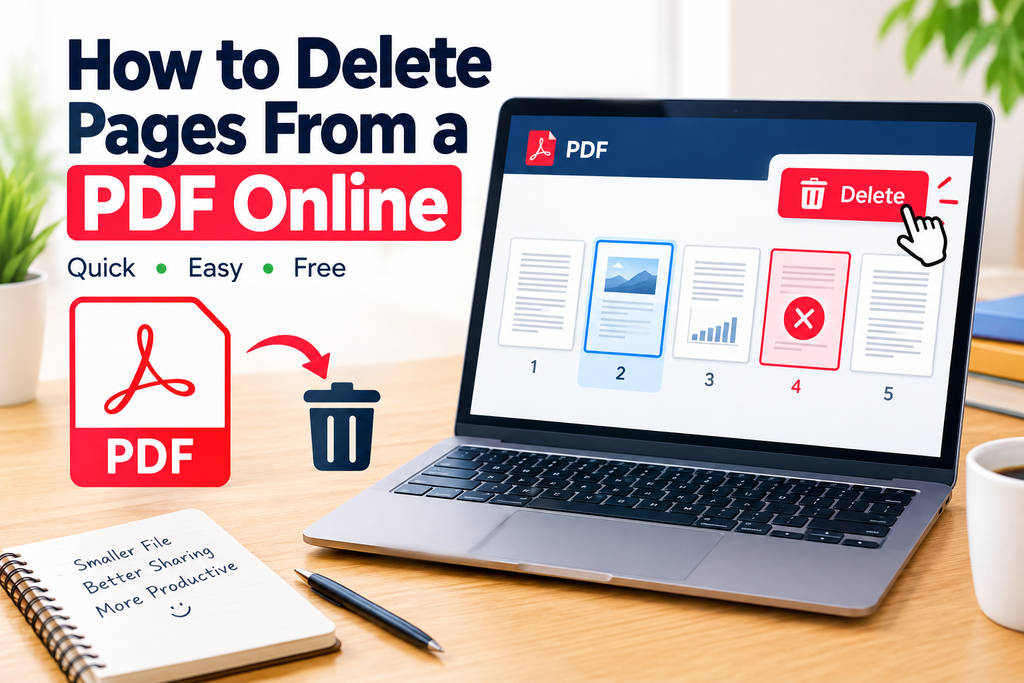
After the PDF has been uploaded, the tool will normally display small previews or thumbnails of each page.
This is one of the most important parts of the process. I always recommend checking the page numbers carefully before deleting anything.
Look through the thumbnails and identify the pages you want to remove. If you are deleting multiple pages, make sure you select every unwanted page before continuing.
Step 4: Select the Pages You Want to Delete
Click on the page or pages that you want to remove.
Some PDF tools allow you to select multiple pages at the same time. Others may require you to select each page individually.
For example, if you want to delete pages 3, 7, and 10, select those pages from the thumbnail view.
Take a moment to double check your selection. Accidentally deleting the wrong page can be frustrating, especially if you do not have the original PDF saved.
Step 5: Click the Delete or Remove Button
After selecting the unwanted pages, click the Delete Pages, Remove Pages, or trash icon.
The online PDF tool should process your document and remove the selected pages.
The processing time usually depends on the file size and the number of pages.
Step 6: Download the New PDF
Once the unwanted pages have been removed, look for the Download button.
Download the edited PDF to your computer, tablet, or smartphone.
I recommend opening the new file before sharing it with anyone. Quickly check the page count and scroll through the document to make sure everything looks correct.
Can I Delete Multiple Pages From a PDF Online?
Yes, most online PDF page removal tools allow users to delete multiple pages.
This is particularly useful for large PDF documents. Instead of deleting pages one by one, you can often select several unwanted pages and remove them together.
For example, if you have a fifty page document and want to remove pages 4, 8, 15, and 30, an online PDF page remover can make this process much faster.
However, the exact selection features depend on the tool you are using. Some websites may offer advanced page management features, while others provide only basic deletion.
How to Delete a Blank Page From a PDF
Removing a blank PDF page is one of the most common reasons people search for an online PDF page remover.
The process is straightforward. Upload your PDF, review the page thumbnails, find the blank page, select it, and click the delete option.
After deleting the blank page, download the new PDF and check the document again.
I especially recommend checking the final page of your PDF because blank pages often appear at the end due to formatting or document conversion issues.
How to Delete a Specific Page From a PDF
If you know the exact page number you want to remove, the process becomes even easier.
Open the PDF page removal tool and upload your file. Find the page number in the thumbnail view, select that page, and use the delete option.
For example, if page 12 contains outdated information, select page 12 and remove it. Then download the revised PDF.
Always verify the page numbering displayed by the online tool because some interfaces may show page positions differently after other pages have been selected or removed.
Benefits of Using an Online PDF Page Remover
One major advantage of an online PDF tool is convenience. You do not usually need to install additional software.
You can use many online PDF tools directly from a web browser. This means you can work from a Windows computer, Mac, tablet, or smartphone.
Another benefit is speed. For a small PDF, deleting unnecessary pages can take only a few minutes.
Online PDF tools can also be useful for students, teachers, office workers, freelancers, researchers, and anyone who regularly works with digital documents.
For me, one of the biggest advantages is that the process is simple. I do not have to open complicated editing software just to remove one or two pages.
Things to Check Before Uploading a PDF
Although online PDF tools are convenient, I believe it is important to think about privacy before uploading documents.
If your PDF contains personal information, financial details, passwords, private business information, or confidential documents, check the website’s privacy policy and security information first.
You should also avoid uploading documents containing sensitive information to websites that you do not trust.
Another useful habit is keeping the original PDF. Before editing a document, make a copy if you think you may need the original version later.
This gives you a backup if you accidentally delete the wrong pages.
Tips for Managing PDF Pages
When working with PDF documents, a few simple habits can make the process easier.
First, always keep the original document until you are satisfied with the edited version.
Second, check the page thumbnails carefully before deleting anything.
Third, give the new PDF a clear filename. For example, instead of saving a file as document.pdf, you could use final report.pdf or updated assignment.pdf.
Fourth, open the downloaded file and review it before sending it to someone else.
Finally, if you regularly work with PDF files, learn other useful PDF functions such as merging files, splitting PDFs, rearranging pages, compressing documents, and adding signatures.
Can I Delete PDF Pages on a Phone?
Yes, many online PDF tools work through mobile web browsers.
The basic process is similar. Open the PDF page remover website, upload the document from your phone, select the unwanted pages, delete them, and download the updated PDF.
However, working with a large PDF on a phone can sometimes be less convenient because the page previews are smaller. If the document contains many pages, I personally find it easier to use a laptop or desktop computer.
What Happens to the Original PDF?
Normally, deleting pages through an online PDF tool creates an edited version rather than changing the original file stored on your device.
This means your original PDF should remain available unless you manually replace or delete it.
Still, I recommend keeping the original document as a backup until you have checked the edited version.
Final Thoughts
Learning how to delete pages from a PDF online is a simple skill that can be useful in everyday digital work. Whether you need to remove a blank page, delete outdated information, remove duplicate content, or create a shorter document, an online PDF page remover can make the process quick and convenient.
The basic steps are easy to remember. Upload your PDF, review the pages, select the unwanted pages, click delete, and download the updated document.
From my point of view, the most important thing is not simply finding the fastest PDF tool. It is choosing a tool that is easy to use and suitable for your document. I also recommend checking privacy information when working with personal or confidential files.
Before sharing your edited PDF, always open the final file and check that the correct pages were removed and that the remaining document looks normal.
With these simple steps, you can manage your PDF pages more efficiently without needing complicated software or advanced technical skills.