Related Articles

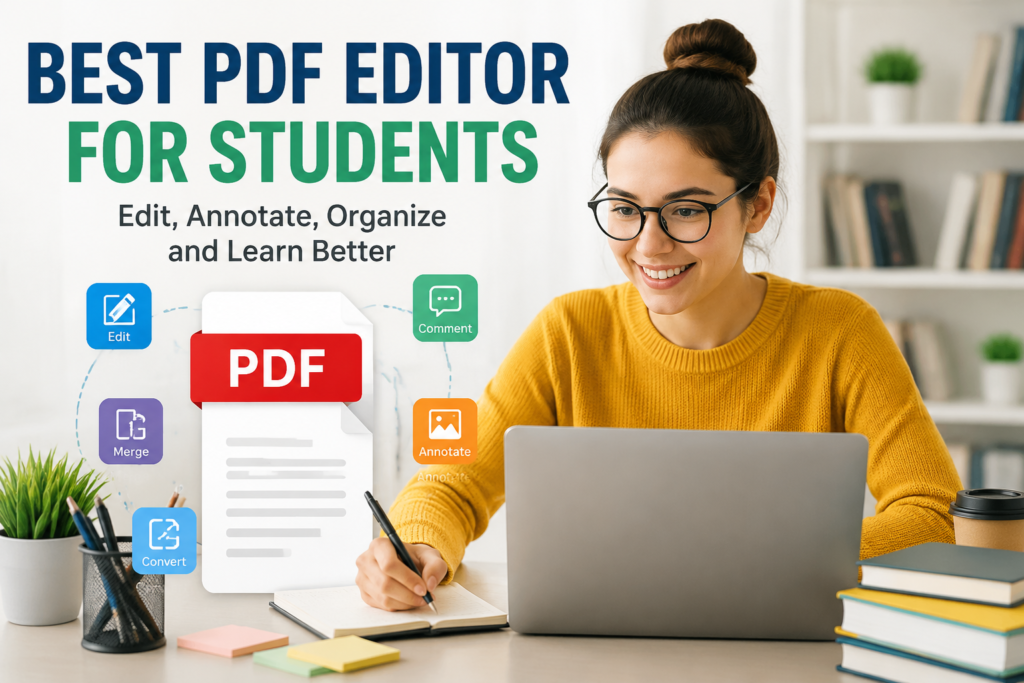
As a student, I have realized that PDF files are a part of everyday academic life. Whether it is lecture notes, assignments, research papers, ebooks, or project reports, almost everything is shared in PDF format. At first, I thought a simple PDF reader was enough, but as my studies became more demanding, I understood the importance of having a reliable PDF editor.
A good PDF editor does much more than just open a document. It allows students to highlight important points, add comments, edit text, sign forms, organize pages, and even convert files into different formats. These features save time and make studying much more organized.
After trying several PDF editors, I have learned that the best choice depends on what a student actually needs. Some tools focus on simplicity while others provide professional features. In this article, I will share my thoughts on what makes a PDF editor useful for students and which options are worth considering.
Why Students Need a PDF Editor
Most educational institutions now rely heavily on digital documents. Teachers upload assignments as PDFs, professors distribute lecture notes in PDF format, and research journals are almost always available as PDF files.
Without a proper editor, students often struggle with tasks like filling out application forms, making notes on lecture slides, or combining multiple documents into one file.
A PDF editor helps solve these problems quickly. Instead of printing documents and writing by hand, everything can be done digitally. This not only saves paper but also makes it easier to organize study materials.
Another major benefit is accessibility. Students can edit their documents from laptops, tablets, or even smartphones, making it possible to study from anywhere.
Features I Look for in a PDF Editor
Not every PDF editor is designed with students in mind. Some are built for businesses and include advanced tools that most students may never use.
When choosing a PDF editor, these are the features I consider the most valuable.
Easy text editing allows corrections without creating a new document.
Highlighting and annotation tools make it simple to mark important information while studying.
Commenting features help during group projects because everyone can leave feedback on the same document.
PDF conversion is useful when converting assignments into Word documents for editing or turning Word files into PDFs before submission.
Page organization helps combine lecture notes, remove unnecessary pages, or rearrange documents.
Cloud storage support keeps files synchronized across multiple devices.
Electronic signature support makes it easy to sign university forms without printing them.
Password protection keeps important academic documents secure.
Adobe Acrobat
Adobe Acrobat is probably the most recognized PDF editor in the world. Since Adobe created the PDF format, it is not surprising that their software includes nearly every feature a student could need.
The editing tools are accurate and professional. Students can edit text, insert images, add comments, create bookmarks, and convert documents into many formats.
One feature I especially appreciate is the ability to scan handwritten notes and convert them into searchable PDFs. This is extremely useful for organizing class notes.
Adobe Acrobat also integrates well with cloud services, allowing students to access their files from multiple devices.
The biggest downside is the subscription price. While it offers excellent functionality, it may not fit every student’s budget.
PDFgear
PDFgear has become one of my favorite free PDF editors because it offers premium level features without charging users.
Students can edit text, add annotations, merge PDFs, split documents, convert files, and even use AI powered tools for summarizing documents.
The interface is clean and easy to understand, making it suitable even for beginners.
Unlike many free editors, PDFgear does not add annoying watermarks to exported files, which is a huge advantage for students submitting assignments.
If someone wants a free solution with impressive capabilities, this is definitely worth considering.
Smallpdf
Smallpdf is popular among students who prefer working online rather than installing software.
The website includes tools for compressing PDFs, editing documents, converting file formats, and organizing pages.
I like how simple the interface is. Even someone using it for the first time can understand the process within minutes.
Smallpdf also works well across different operating systems since everything happens in the browser.
The free version has some daily usage limits, but it is still sufficient for many students who only edit documents occasionally.
Foxit PDF Editor
Foxit has built a strong reputation for providing powerful PDF editing software while remaining lighter than many competitors.
It opens large documents quickly and offers excellent annotation tools.
Students working with research papers can highlight text, create bookmarks, insert comments, and collaborate with classmates.
Foxit also supports cloud integration and digital signatures.
Although some advanced features require a paid subscription, the overall experience is smooth and efficient.
Sejda PDF Editor
Sejda is another excellent choice for students looking for a balance between simplicity and functionality.
It works both online and offline, allowing flexibility depending on your needs.
The editor supports text editing, page management, annotations, filling forms, and document compression.
One thing I appreciate is that Sejda has a very modern interface. The tools are clearly labeled, making it less confusing than some professional editors.
The free version has daily task limits, but many students may never reach those restrictions during regular use.
Microsoft Edge PDF Editor
Many students already have access to Microsoft Edge without realizing it includes useful PDF features.
Although it is not a complete editor, it allows highlighting, drawing, adding notes, and reading PDFs comfortably.
For students who only need to review lecture slides or annotate notes, Microsoft Edge may be enough.
Since it comes preinstalled on many Windows computers, there is no extra software to download.
Free vs Paid PDF Editors
One question students often ask is whether they should pay for a PDF editor.
In my opinion, it depends on how frequently the software will be used.
If your needs are limited to highlighting, basic editing, merging documents, or converting files occasionally, a free editor is usually enough.
However, students studying law, engineering, architecture, or research intensive subjects may benefit from premium software because they often work with larger and more complex documents.
Paid editors generally provide faster performance, more accurate editing, better customer support, and advanced collaboration tools.
Tips for Choosing the Right PDF Editor
Before downloading any software, I recommend thinking about your actual academic needs.
Choose an editor that has a clean and simple interface.
Make sure it supports your operating system.
Look for cloud synchronization if you study on multiple devices.
Check whether the free version includes the features you need.
Read user reviews to understand how reliable the software is.
Avoid installing programs from unknown websites because they may contain unwanted software or security risks.
Which PDF Editor Do I Recommend?
If I had to recommend only one free option for students, I would choose PDFgear because it provides excellent editing tools without charging users.
For students who need professional level features and are willing to pay, Adobe Acrobat remains one of the strongest choices available.
Those who mainly work online may prefer Smallpdf because of its convenience.
Students who want a lightweight yet powerful application should consider Foxit.
For simple daily studying and note taking, Microsoft Edge can also be surprisingly useful.
Final Thoughts
Finding the best PDF editor for students is not about choosing the most expensive software. It is about selecting a tool that makes studying easier, saves time, and helps keep academic work organized.
Throughout my academic experience, I have learned that having a dependable PDF editor reduces stress during assignment submissions, improves productivity while studying, and makes document management much simpler.
Technology continues to improve every year, and today’s PDF editors offer features that once required expensive software. Whether you choose a free editor or invest in a premium solution, the right tool can significantly improve your academic workflow.
In the end, the best PDF editor is the one that fits your study habits, your budget, and your daily academic requirements. Once you find the right option, you will likely wonder how you ever managed your coursework without it.