Related Articles
Finding a good online photo editor without a watermark is not always easy. I have tried many free editing tools over the years, and one thing that always disappointed me was spending time editing a photo only to discover a large watermark on the final image. It feels frustrating because your work should look clean and professional without unnecessary branding.
After testing different online photo editors, I realized that several platforms allow users to edit images for free while exporting them without adding watermarks. These tools are perfect for bloggers, students, business owners, social media creators, and anyone who wants high quality editing without installing heavy software.
In this article, I will share my experience with the best online photo editors that do not place watermarks on your images. I will also explain their features, advantages, and the situations where each one works best.
Why Choose an Online Photo Editor
Online photo editors have become more powerful than ever. A few years ago, desktop software was the only option for serious editing, but now browser based editors can handle most everyday tasks.
The biggest advantage is convenience. You can open your browser, upload your image, make changes, and download the final version within minutes. There is no need to install software or worry about updates.
Another benefit is compatibility. Whether you are using Windows, Mac, Linux, or even a Chromebook, online editors work smoothly as long as you have an internet connection.
Most importantly, many of these editors allow users to save images without adding unwanted watermarks.
What Makes a Good Photo Editor
Whenever I test a photo editor, I look for a few important features.
The first is image quality. A good editor should preserve the original quality after editing.
The second is ease of use. Beginners should be able to understand the interface without watching long tutorials.
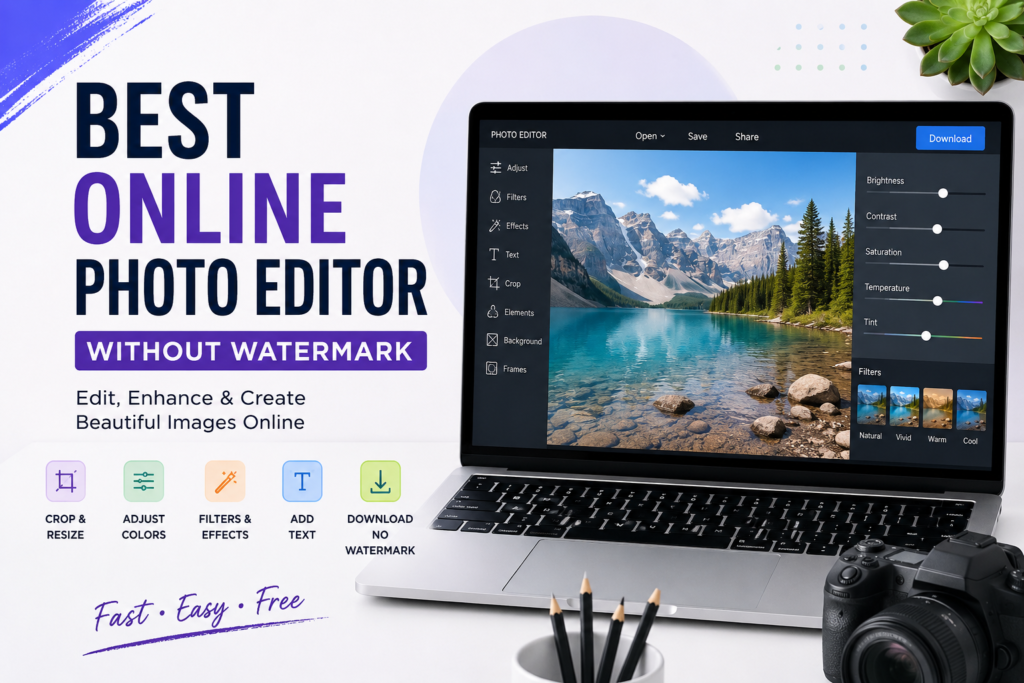
The third is editing features. Basic tools like cropping, resizing, rotating, brightness adjustment, color correction, filters, text, and background removal should be available.
Finally, I always check whether the free version exports images without watermarks. That is one of the biggest reasons people search for these tools.
Canva
Canva is one of my favorite online design platforms because it is simple and beginner friendly.
Although many premium templates require a subscription, users can create their own designs and edit photos using free elements without receiving a watermark.
Canva offers tools for cropping, resizing, adjusting brightness, contrast, saturation, and adding text or graphics. It is especially useful for creating YouTube thumbnails, Instagram posts, Facebook covers, and blog graphics.
If you only use free resources, your downloaded images remain clean and professional.
Photopea
Photopea is probably the closest alternative to Photoshop that runs entirely in a web browser.
I was surprised by how powerful it is. It supports PSD files, layers, masks, smart objects, and advanced editing features.
Unlike many other editors, Photopea allows users to export their projects without adding watermarks.
This makes it an excellent choice for graphic designers, photographers, and advanced users who need professional level editing without paying for expensive software.
Pixlr
Pixlr has improved a lot over the years. Its interface is clean, modern, and easy to understand.
The editor includes AI powered features, background removal, filters, overlays, and retouching tools.
For basic editing, the free version works very well and does not place watermarks on standard exports.
I often recommend Pixlr to beginners because it balances simplicity with useful editing features.
Fotor
Fotor is another excellent browser based photo editor.
It includes portrait enhancement, one click filters, beauty tools, text effects, and collage creation.
Many premium AI features require a subscription, but basic editing remains free.
As long as you stay within the free tools, you can download your edited photos without visible watermarks.
This makes Fotor a solid choice for casual users and social media creators.
Adobe Express
Adobe Express offers a simplified editing experience compared to Photoshop.
The interface feels polished, and the editing process is straightforward.
Users can resize images, remove backgrounds in supported plans, apply filters, adjust colors, and add text.
Many free features allow watermark free downloads, making Adobe Express suitable for students, marketers, and content creators.
BeFunky
BeFunky is designed for users who want quick edits without dealing with complicated settings.
It offers cropping, resizing, sharpening, color adjustments, artistic effects, and graphic design templates.
The editing experience feels smooth even for first time users.
For standard editing tasks, downloading without watermarks is possible using the available free features.
LunaPic
LunaPic has an old fashioned interface, but it remains one of the most capable free online editors.
It includes hundreds of editing effects, animations, filters, drawing tools, and image optimization options.
Although the website may not look modern, it performs surprisingly well.
One thing I appreciate is that it allows users to save edited images without placing watermarks on them.
Why Watermark Free Editing Matters
Watermarks can make even the best image look unprofessional.
If you are writing blog posts, running social media pages, creating presentations, or designing marketing materials, clean images help create a better impression.
Using watermark free editors also saves time because you do not have to repeat your editing work in another application.
For freelance designers and content creators, professional looking images can improve credibility and audience trust.
Features You Should Look For
Not every online editor offers the same tools.
When choosing one, I recommend checking for these features.
High quality image export.
Support for PNG and JPG formats.
Easy cropping and resizing.
Brightness and color adjustments.
Text editing.
Filters and effects.
Background removal.
Layer support for advanced editing.
Cloud saving if available.
Mobile compatibility.
Having these features makes editing much easier and more enjoyable.
Tips for Better Photo Editing
Even the best editor cannot improve a poorly captured image without some effort.
I usually start by adjusting brightness and contrast before making other changes.
Next, I improve colors carefully instead of making them too saturated.
Cropping unnecessary objects helps viewers focus on the main subject.
Sharpening should be used lightly because excessive sharpening makes images look unnatural.
If I add text, I keep it simple and readable.
Finally, I always save the image in the highest quality available to maintain a professional appearance.
Which Editor Is Best for Beginners
If someone is completely new to photo editing, I usually suggest Canva or Pixlr.
Both platforms have clean interfaces and simple controls.
They make editing enjoyable without overwhelming users with advanced tools.
Within a short time, most beginners can learn to crop images, adjust colors, add text, and create attractive graphics.
Which Editor Is Best for Professionals
Professional designers often need more advanced editing options.
In my opinion, Photopea is the strongest free browser based solution.
Its support for Photoshop files, layers, masks, and advanced editing tools makes it incredibly powerful.
Many professionals even use it as a backup when Photoshop is unavailable.
Final Thoughts
Choosing the best online photo editor without a watermark depends on your editing needs, but the good news is that you no longer need expensive software to create professional looking images.
For simple designs and social media graphics, Canva is an excellent option. If you want advanced editing features similar to Photoshop, Photopea stands out as one of the best free choices. Pixlr, Fotor, Adobe Express, BeFunky, and LunaPic also provide impressive editing capabilities without forcing unwanted watermarks on your work when using their free features appropriately.
Personally, I like keeping more than one editor in my toolkit because each platform has its own strengths. Sometimes I need a quick crop and color adjustment, while other times I need advanced layer editing or detailed retouching. Having multiple reliable editors gives me the flexibility to complete any project efficiently.
At the end of the day, the right photo editor is the one that helps you work comfortably, produces high quality results, and lets you download your images without distracting watermarks. Try a few of these editors, explore their features, and choose the one that fits your workflow. Once you find your favorite, creating beautiful images for your blog, business, or social media will become faster, easier, and far more enjoyable.