
Related Articles

If you work with PDF files regularly like I do, you already know how frustrating it can be when you need to edit a PDF. Most PDF documents are designed to keep formatting fixed, which is great for sharing files but not so great when you want to make changes. That is where PDF to Word converters become incredibly useful.
Over the years, I have tested many PDF to Word converter tools for different purposes. Sometimes I only needed to extract text from a simple document, while other times I had to convert business reports, resumes, invoices, or scanned files. Every tool performs differently, and after using several of them, I realized that choosing the right converter can save a lot of time and effort.
In this article, I will compare some of the most popular PDF to Word converters based on my experience. I will discuss their strengths, weaknesses, accuracy, ease of use, and who they are best suited for.
Why PDF to Word Conversion Matters
PDF is one of the most reliable file formats because it looks the same on every device. However, editing a PDF directly can be difficult without expensive software.
Converting a PDF into a Microsoft Word document allows you to edit text, replace images, update tables, fix mistakes, or reuse content without starting from scratch.
A good converter should preserve formatting, fonts, tables, images, and page layouts while making the document editable.
Unfortunately, not every converter delivers the same quality.
What Makes a Good PDF to Word Converter
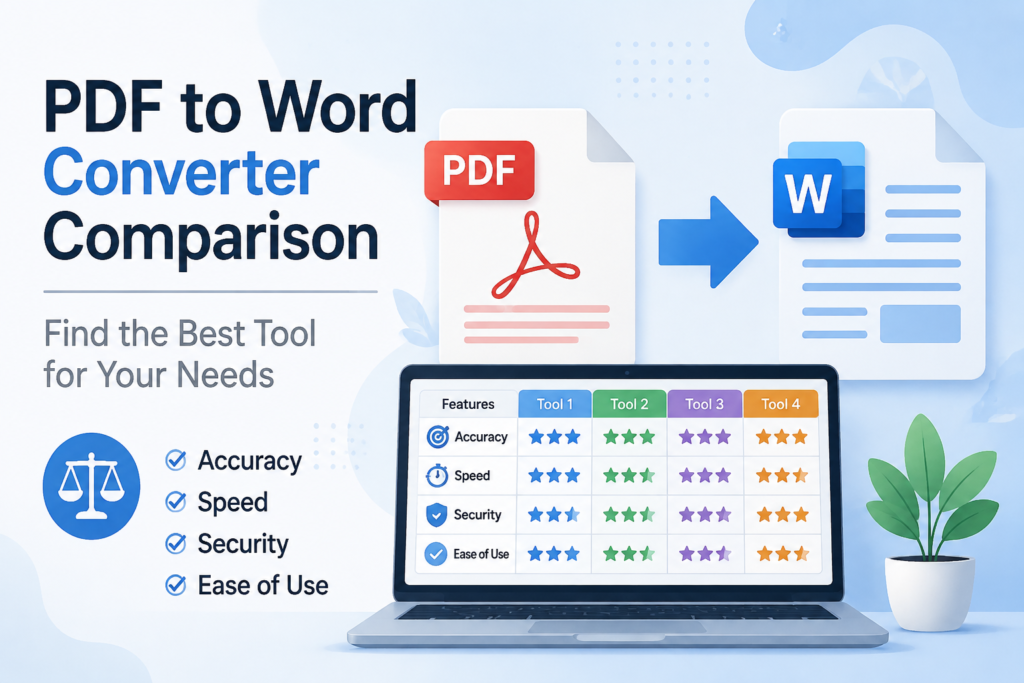
Whenever I compare PDF conversion tools, I focus on a few important factors.
The first is conversion accuracy. A converter should keep the original formatting as close as possible.
The second is speed. Nobody wants to wait several minutes for a simple document.
The third is security. Since many PDF files contain sensitive information, the service should protect uploaded files.
Another important factor is OCR support. OCR, or Optical Character Recognition, allows scanned PDF documents to become editable.
Finally, I consider ease of use. A clean interface makes the entire process much more enjoyable.
Adobe Acrobat Online
Adobe created the PDF format, so it is no surprise that its converter performs exceptionally well.
In my experience, Adobe produces some of the most accurate Word documents available. Fonts, images, headings, tables, and page layouts usually remain almost identical to the original file.
Another advantage is support for scanned documents through OCR technology.
The downside is that some advanced features require a paid subscription. Free users also face upload limitations.
If document accuracy is your top priority, Adobe remains one of the strongest options.
Smallpdf
Smallpdf has become one of my favorite online tools because of its clean interface and fast performance.
Uploading a file takes only a few seconds, and the conversion process is simple enough for beginners.
For standard documents, the formatting remains surprisingly accurate.
I especially like that Smallpdf works well on both desktop and mobile devices.
The free version has usage limits, but for occasional users it works perfectly.
ILovePDF
ILovePDF offers much more than PDF to Word conversion.
It includes tools for merging, splitting, compressing, editing, protecting, rotating, and converting PDF files.
Its PDF to Word converter performs well for simple documents.
Complex layouts sometimes require small formatting adjustments after conversion, but overall the results are reliable.
I often recommend ILovePDF to people who need an all in one PDF toolkit rather than a single conversion tool.
PDFCandy
PDFCandy is another converter that impressed me during testing.
The website offers dozens of free PDF utilities without making the interface confusing.
The Word conversion quality is good for most documents.
It also supports OCR, making it useful for scanned files.
One thing I appreciate is that many features remain free without forcing users into expensive subscriptions.
For students and casual users, PDFCandy provides excellent value.
Nitro PDF Converter
Nitro has built a strong reputation in the business world.
Its PDF to Word conversion is highly accurate, especially for reports, presentations, and professional documents.
Tables usually remain intact, and text formatting stays consistent.
Nitro also focuses heavily on security, making it a popular choice for organizations handling confidential files.
The free version has limitations, but the paid version offers many advanced features.
Microsoft Word
Many people forget that Microsoft Word itself can open PDF documents.
When you open a PDF inside Word, the software automatically converts it into an editable document.
For basic documents, this works surprisingly well.
However, complicated layouts, graphics, or multi column designs may shift during conversion.
Still, if you already have Microsoft Word installed, this is one of the easiest solutions available.
Google Docs
Google Docs also supports PDF conversion.
You simply upload your PDF to Google Drive and open it using Google Docs.
The document becomes editable almost instantly.
The biggest advantage is that it is completely free.
The downside is that formatting often changes significantly, especially in files containing tables, images, or complex layouts.
For plain text documents, Google Docs performs reasonably well.
EasePDF
EasePDF offers a straightforward online conversion experience.
The website is simple, and uploads are processed quickly.
The conversion quality is good for regular office documents.
I found it particularly useful for occasional tasks where I needed quick results without installing software.
The free version is suitable for light usage, while premium plans unlock additional features.
Accuracy Comparison
After testing multiple converters, this is how I personally rank them based on formatting accuracy.
Adobe Acrobat delivers the best overall results.
Nitro follows closely behind, especially for professional documents.
Smallpdf performs very well for everyday files.
PDFCandy and ILovePDF provide reliable performance for most users.
Microsoft Word handles basic documents well but struggles with complex layouts.
Google Docs is suitable for simple text but often changes formatting.
Speed Comparison
Speed becomes important when converting large documents.
Smallpdf is one of the fastest converters I have used.
ILovePDF also processes files quickly.
Adobe is slightly slower because it focuses more on preserving formatting.
Nitro performs efficiently but depends on file size.
Google Docs takes additional time because documents first need to upload into Google Drive.
OCR Performance
Scanned PDF files require OCR technology before they become editable.
Adobe performs exceptionally well in recognizing text from scanned documents.
Nitro also provides impressive OCR accuracy.
PDFCandy offers useful OCR features for free users.
Google Docs includes basic OCR but sometimes introduces spelling errors.
Microsoft Word works for some scanned documents but is less reliable.
Security and Privacy
Whenever I upload important files, security becomes one of my biggest concerns.
Most trusted converters automatically delete uploaded files after a certain period.
Adobe, Smallpdf, Nitro, and ILovePDF clearly explain their file protection policies.
For highly confidential business documents, I usually prefer desktop software because files remain on my own computer.
This reduces privacy concerns completely.
Free vs Paid Converters
Many people wonder whether paying for a PDF converter is worth it.
If you only convert documents occasionally, free tools are usually enough.
Students, teachers, freelancers, and casual users can complete most tasks without spending money.
However, businesses handling hundreds of files each month often benefit from premium plans.
Paid versions usually include unlimited conversions, batch processing, OCR, cloud storage integration, stronger security, and better customer support.
Which Converter Should You Choose
Choosing the right converter depends entirely on your needs.
If maximum accuracy matters, Adobe is my first recommendation.
If you want a fast and beginner friendly online solution, Smallpdf is an excellent choice.
If you need multiple PDF tools in one place, ILovePDF offers outstanding flexibility.
For users looking for generous free features, PDFCandy is difficult to beat.
Business professionals who regularly work with contracts and reports may prefer Nitro.
If you already own Microsoft Word, trying its built in conversion feature costs nothing and may solve your problem instantly.
My Final Thoughts
After comparing many PDF to Word converters, I have learned that no single tool is perfect for every situation. Some prioritize formatting accuracy, while others focus on speed, simplicity, or affordability.
Personally, I use different converters depending on the type of document I am working with. For important reports, I usually choose Adobe because I trust its formatting. For quick everyday tasks, Smallpdf and ILovePDF are often my first choice because they save time and are incredibly easy to use. When I only need to edit a simple document, Microsoft Word itself often does the job without requiring any additional software.
Before selecting a converter, think about how often you convert PDF files, whether you work with scanned documents, and how important formatting accuracy is for your projects. Once you identify your priorities, finding the right PDF to Word converter becomes much easier.
The good news is that there are many excellent options available today. Whether you prefer a completely free online tool or a premium professional solution, you can easily find a converter that fits your workflow and helps you edit PDF documents efficiently without unnecessary hassle.