
Related Articles


Adding a signature to a PDF is something I often need when working with documents, forms, agreements, applications, and other digital files. In the past, I thought signing a PDF meant printing the document, signing it with a pen, scanning it, and then sending it back. Thankfully, things have become much easier.
Today, I can add a signature to a PDF online within a few minutes without printing anything. Online PDF signature tools allow me to upload a document, create or upload my signature, place it in the correct location, and download the completed PDF.
In this guide, I will explain how to add a signature to a PDF online, what options are available, how digital signatures work, and what I look for when choosing an online PDF signing tool.
What Does It Mean to Add a Signature to a PDF?
Adding a signature to a PDF means placing your signature electronically inside a PDF document. The signature can usually be created by drawing it with a mouse or touchscreen, typing your name, or uploading an image of your handwritten signature.
I find this especially useful when I receive documents through email that require a quick signature. Instead of printing the document, signing it, scanning it, and sending it again, I can complete the entire process digitally.
Depending on the online tool, I may also be able to add a date, initials, text, checkboxes, and other information to the PDF.
Why Add a Signature to a PDF Online?
There are several reasons why I prefer signing PDFs online. The biggest advantage is convenience.
When someone sends me a PDF that needs a signature, I do not have to search for a printer or scanner. I can simply open an online PDF signing tool from my browser and complete the document.
Another advantage is speed. A task that could take several minutes when using printed documents can often be completed in just a few steps online.
Online PDF signing can also reduce paper usage. Instead of printing every document, I can keep the completed file digitally and send it directly to the required person or organization.
For students, employees, freelancers, business owners, and anyone who regularly works with digital documents, this can save a considerable amount of time.
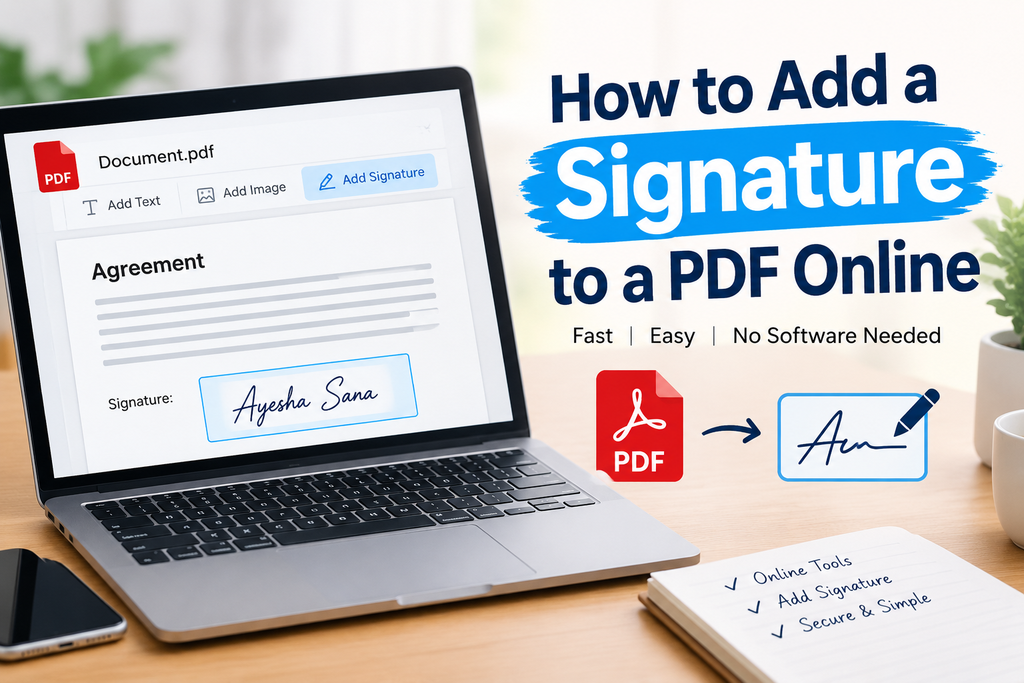
How to Add a Signature to a PDF Online
The exact process depends on the online PDF editor you use, but most tools follow a similar process.
Step 1: Choose an Online PDF Signature Tool
The first step is to choose an online tool that supports PDF signatures. There are many PDF editors available, so I recommend checking the available features before uploading an important document.
A good online PDF signing tool should have a simple interface and allow you to create or upload a signature easily. I also prefer tools that clearly explain how uploaded documents are handled.
If the document contains private or confidential information, I pay extra attention to the service’s privacy and security information before uploading it.
Step 2: Upload Your PDF
Once I select a suitable tool, I upload the PDF that I want to sign.
Most websites provide an upload button that allows me to select a PDF from my computer. Some tools may also support files from cloud storage services.
After uploading the document, the online editor normally opens the PDF so I can view its pages.
Step 3: Select the Signature Option
The next step is to look for an option such as Add Signature, Sign, or Create Signature.
When I select this option, the tool may provide several ways to create my signature.
For example, I may be able to type my name and select a signature style. Another option is drawing the signature using my mouse, trackpad, touchscreen, or stylus.
Some services also allow me to upload an image of an existing handwritten signature.
I usually prefer the option that gives the most natural result while still being easy to use.
Step 4: Create Your Signature
Now I can create my electronic signature.
If I am using a computer, I can draw my signature with a mouse or trackpad. If I am using a touchscreen device, I can use my finger or a stylus.
Some tools allow me to type my name instead. This can be useful when I want a clean and professional appearance.
If I already have a suitable signature image, I may be able to upload it directly.
Before continuing, I always check how the signature looks. A signature that is too large, too small, or difficult to read may not look professional in the final document.
Step 5: Place the Signature on the PDF
After creating the signature, I can usually drag it to the required location.
For example, if the document contains a Signature field near the bottom of the page, I place my signature inside that area.
I also check the size and alignment carefully. The signature should normally fit neatly within the designated space.
This is a small step, but I think it makes a big difference in the appearance of the finished PDF.
Step 6: Resize the Signature
Most online PDF editors allow you to resize your signature.
If the signature is too large, I reduce its size. If it is too small, I increase it slightly.
I try to keep the signature proportional to the document. It should be easy to see without covering other text.
Step 7: Review the Entire Document
Before downloading the signed PDF, I recommend reviewing the complete document.
I check that the signature is on the correct page and in the correct location. I also check that no important text has been accidentally covered.
If the document contains multiple signature fields, I make sure that all required areas have been completed.
This quick review can prevent mistakes and save time later.
Step 8: Download the Signed PDF
Once everything looks correct, I download the completed PDF.
Most tools provide a Download or Save option. The finished document can then be saved on my computer or device.
Before sending it to someone else, I usually open the downloaded PDF again to confirm that the signature has been saved correctly.
Different Ways to Create a PDF Signature
One thing I like about modern PDF signing tools is that I am not limited to one meth