
Related Articles

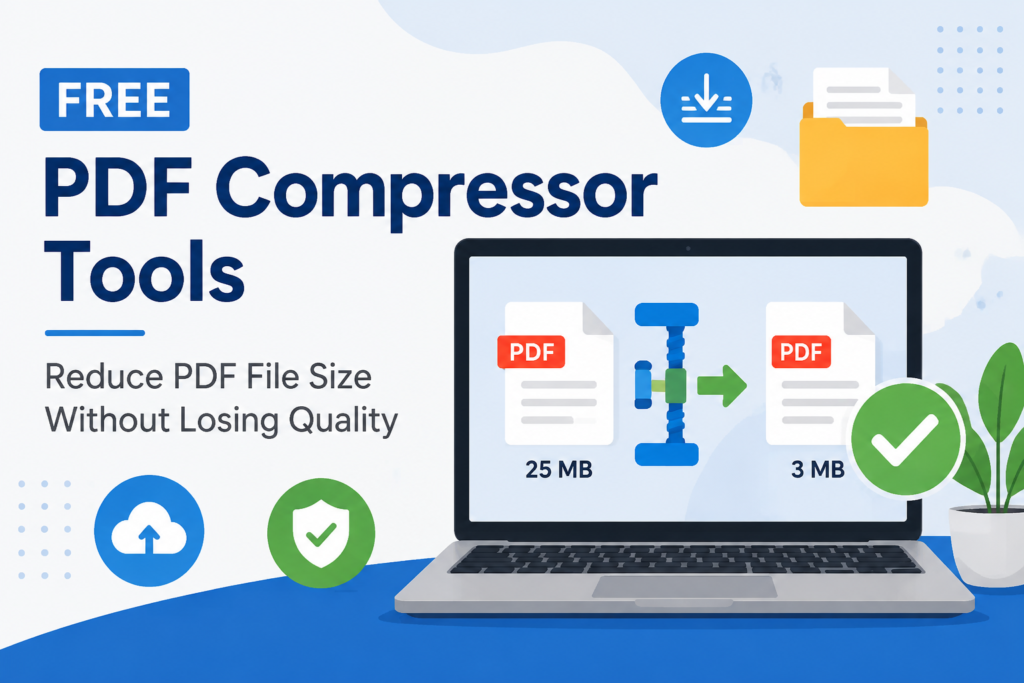
PDF files have become a part of everyday life. Whether I need to send important documents, upload assignments, share business files, or email reports, PDFs are always my first choice because they keep formatting intact. The only problem I often face is file size. Sometimes a PDF is simply too large to upload or send through email. That is when PDF compressor tools become incredibly useful.
I have tried many free PDF compressor tools over the years, and I have learned that not every tool gives the same results. Some reduce the file size without affecting quality, while others make documents blurry and difficult to read. That is why I always prefer tools that offer a good balance between compression and document quality.
In this article, I want to share my experience with free PDF compressor tools and explain which ones I think are worth using. If you regularly work with PDFs, this guide can save you time and help you choose the right tool.
Why PDF Compression Matters
Large PDF files can create several problems. They take longer to upload, consume more storage space, and are difficult to share through email or messaging apps. Many websites also have upload limits, and if your file exceeds the maximum size, you have no choice but to compress it.
I personally compress PDFs before uploading them to online forms or sending them to clients. A smaller file is easier to manage and usually uploads much faster.
Another advantage is storage management. If you keep hundreds of PDF files on your laptop or cloud storage, reducing their size can free up a surprising amount of space.
What Makes a Good PDF Compressor
After testing many free tools, I believe a good PDF compressor should offer more than just smaller file sizes.
It should preserve text clarity so documents remain easy to read.
Images inside the PDF should stay reasonably sharp.
The compression process should be quick.
The interface should be simple enough for beginners.
Most importantly, it should not add watermarks or force users to create an account for basic compression.
These are the features I always look for before recommending any PDF compression tool.
Smallpdf
Smallpdf is one of the first online PDF tools I ever used. Its interface is clean, modern, and extremely beginner friendly.
Using it is simple. I upload my PDF, wait a few seconds, and download the compressed version.
The free version usually works well for everyday documents. I especially like it for reports, resumes, invoices, and school assignments.
The compression quality is generally impressive. Most text remains perfectly readable while the file size becomes much smaller.
The only downside is that the free version has daily usage limits, which may not be suitable if you compress dozens of files every day.
iLovePDF
Whenever someone asks me for a reliable PDF tool, iLovePDF is usually one of my first recommendations.
Besides compression, it includes many useful features like merging PDFs, splitting files, converting formats, and rotating pages.
Its compression tool offers different levels depending on how much size reduction you need.
I appreciate that the website is straightforward and works smoothly on both desktop and mobile devices.
For normal office work and educational use, it performs consistently well.
PDF24 Tools
PDF24 is one of the most underrated free PDF platforms in my opinion.
Unlike many websites that focus only on premium subscriptions, PDF24 offers a surprisingly generous collection of free tools.
Its PDF compressor produces good results while keeping document quality high.
Another feature I like is that many functions are available through its desktop application, allowing users to compress PDFs even without an internet connection.
For users concerned about privacy, this can be a valuable option.
Adobe Acrobat Online Compressor
Adobe created the PDF format, so naturally many people trust its online compressor.
The tool works smoothly and usually delivers excellent compression quality.
Documents remain sharp, professional, and easy to read.
For business presentations and official documents, Adobe often provides some of the best results.
However, certain advanced features require a paid subscription, so the free version has limitations.
Still, for occasional compression, I think it performs very well.
Soda PDF Online
Soda PDF is another free compressor that deserves attention.
Its interface is modern and beginner friendly.
I like that uploading files is quick and downloading the compressed version usually takes only a few moments.
The quality remains acceptable for most everyday documents.
Although it may not reduce file sizes as aggressively as some competitors, it does a good job of preserving readability.
AvePDF
AvePDF may not be as popular as other PDF websites, but I have found it surprisingly useful.
The website focuses on simplicity.
There are no confusing menus or unnecessary features.
You upload the document, compress it, and download the result.
For users who simply want a fast compression tool without distractions, AvePDF is a solid choice.
FreePDFConvert
Another useful option I occasionally use is FreePDFConvert.
Its compression process is straightforward, and the platform supports various cloud storage services.
If your PDFs are already stored online, this integration makes the workflow easier.
Compression quality is generally reliable for normal documents, reports, and forms.
How Much Can PDF Files Be Reduced
Many people expect compression to reduce every PDF by 90 percent, but that is not always realistic.
The amount of size reduction depends on the content inside the file.
If the PDF contains large images, scanned pages, or high resolution graphics, compression can significantly reduce the file size.
If the document mostly contains text, there may not be much unnecessary data to remove.
From my experience, reducing file size by 30 to 70 percent is common while still maintaining acceptable quality.
Online Tools Versus Desktop Software
One question I often hear is whether online compressors are better than desktop software.
I think both have advantages.
Online tools are convenient because they work instantly without installation. They are perfect for occasional users.
Desktop software offers better privacy because files never leave your computer.
If I am compressing confidential contracts or sensitive business documents, I prefer offline software.
For everyday PDFs, online tools are usually fast enough.
Things I Always Check Before Compressing
Over time, I have developed a few habits that help me avoid problems.
I always keep the original PDF until I confirm the compressed version looks good.
After downloading the compressed file, I carefully check every page.
I zoom in to make sure text remains readable.
I also verify that important images and charts have not become blurry.
These simple checks take only a minute and prevent unexpected surprises later.
Are Free PDF Compressors Safe
Security is an important concern whenever files are uploaded online.
Most well known PDF websites automatically delete uploaded files after a certain period.
Still, I avoid uploading highly confidential documents unless I completely trust the service.
If privacy is essential, offline software is always the safer option.
Reading the website’s privacy policy before uploading sensitive files is also a good habit.
Which Free Tool Do I Prefer
If I had to choose only one free PDF compressor, I would probably pick iLovePDF because it combines ease of use with excellent compression quality.
For users who value privacy, PDF24 is another excellent choice because of its offline features.
If someone wants professional quality with a familiar brand, Adobe Acrobat Online remains a reliable option.
Ultimately, the best tool depends on your specific needs.
Final Thoughts
Free PDF compressor tools have become an essential part of my daily workflow. They save storage space, make file sharing easier, and help me meet upload size limits without sacrificing document quality.
The good news is that you do not need expensive software to achieve excellent results. Several free tools provide impressive compression while keeping documents clear and professional.
My advice is to test a few different options and see which one matches your needs. Every PDF is different, and each compressor performs slightly differently depending on the document.
At the end of the day, the best PDF compressor is the one that gives you the right balance between smaller file size, good quality, ease of use, and privacy. Once you find a tool that consistently delivers those results, managing PDF files becomes much easier and far less frustrating.