Related Articles
Converting a PDF file into a JPG image is a simple task that can be useful in many situations. I often find that PDF files are excellent for documents, reports, forms, and printable content, but they are not always convenient when I need to share a single page as an image. JPG files are easier to upload to many websites, share on social media, insert into presentations, or view quickly on almost any device.
The good thing is that I do not always need special software to convert PDF to JPG. There are many online PDF to JPG converter tools that can complete the process directly from a web browser. In this guide, I will explain how to convert PDF to JPG online, what steps to follow, what settings to check, and how to choose a reliable online converter.
What Is PDF to JPG Conversion?
PDF to JPG conversion means turning one or more pages of a PDF document into JPG image files. A PDF may contain text, pictures, charts, forms, or scanned pages. When I convert it to JPG, each selected PDF page can become a separate image.
For example, if my PDF has five pages, an online converter may create five JPG images. Some tools also allow me to convert only selected pages instead of the complete document.
JPG is a popular image format because it is widely supported and usually creates smaller files than many other image formats. This makes it useful when I need an image that can be easily uploaded, shared, or displayed.
Why Convert PDF to JPG Online?
There are several reasons why I may want to convert PDF to JPG online. The biggest advantage is convenience. I can complete the conversion using a browser without installing a desktop application.
Online tools can also be useful when I am working from a different computer or mobile device. I only need a browser and an internet connection.
Another advantage is speed. For a small PDF, the entire process can often be completed within a short time. Many online PDF to JPG converters also provide simple interfaces that are easy for beginners to understand.
I also find JPG files more convenient when I need to use a PDF page as an image in a presentation, blog post, document, or design project.
How to Convert PDF to JPG Online
The basic process is quite simple. While the exact buttons can be different on every website, most PDF to JPG converter tools follow almost the same steps.
Step 1: Choose an Online PDF to JPG Converter
First, I open a trusted online PDF conversion website. I look for a tool that clearly supports PDF to JPG conversion.
Before uploading a document, I check the website interface and make sure I am using the correct conversion option. Some websites provide several tools, such as PDF to PNG, JPG to PDF, PDF compression, and PDF merging.
For this task, I select the PDF to JPG option.
Step 2: Upload the PDF File
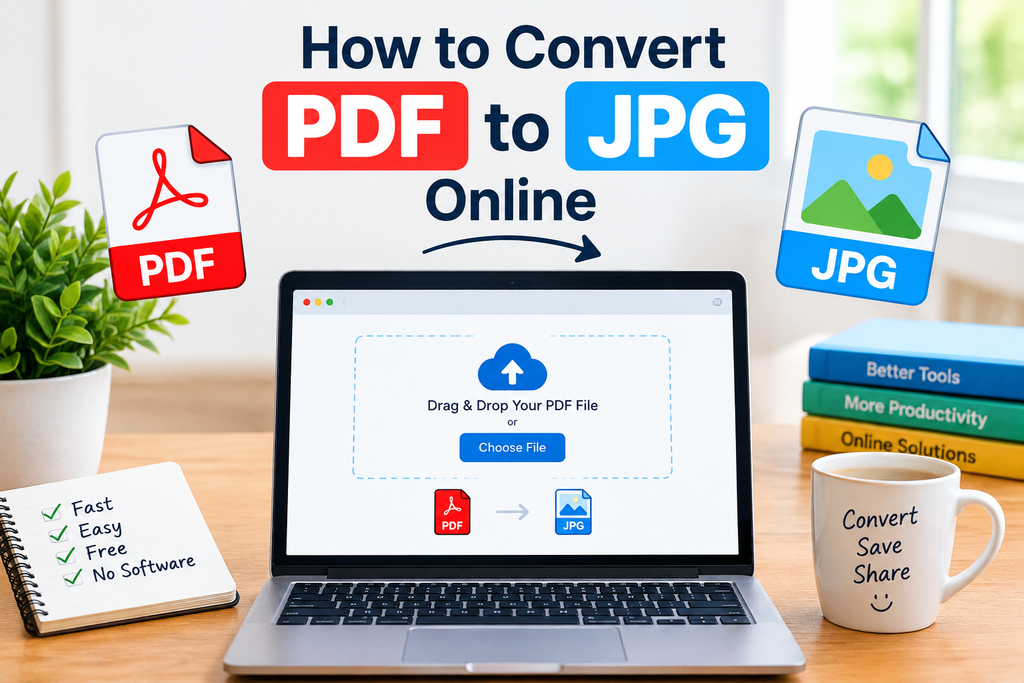
After opening the converter, I usually see a button such as Upload PDF, Choose File, or Select File.
I click the button and select the PDF from my computer or mobile device. Some websites also support drag and drop, which can make uploading faster.
I recommend checking the PDF before uploading it. If the file contains pages that I do not need, I may want to use a tool that allows page selection.
Step 3: Select Conversion Settings
Some online PDF to JPG tools provide additional settings. Depending on the website, I may be able to choose image quality, page selection, resolution, or output format.
If I need a high quality image for printing or detailed viewing, I choose a higher quality setting when available.
If my main goal is a smaller file size for quick sharing, a standard quality setting may be enough.
For most normal documents, I prefer a balanced setting because extremely high quality can create unnecessarily large image files.
Step 4: Start the Conversion
Once the PDF has been uploaded and the settings are selected, I click the Convert button.
The online tool processes the PDF and turns its pages into JPG images. The processing time depends on the size of the PDF, the number of pages, and the service being used.
For a small document, the conversion can usually be completed quickly.
Step 5: Download the JPG Images
After the conversion is complete, the website normally provides a Download button.
If the PDF contains multiple pages, the service may provide separate JPG files or a ZIP file containing all converted images.
I download the files and save them in a folder where I can easily find them later.
Before using the images, I recommend opening them and checking the quality. This is especially important if the PDF contains small text, tables, or detailed graphics.
How to Convert a Single PDF Page to JPG
Sometimes I do not need the entire PDF. I may only need one particular page as a JPG image.
In that situation, I look for a converter that supports page selection. After uploading the PDF, I select the page or pages that I want to convert.
This can save time and storage space because I do not have to convert every page in the document.
For example, if I have a ten page PDF but only need page three, converting only page three gives me a single JPG instead of ten separate images.
How to Convert Multiple PDF Pages to JPG
When I need every page of a PDF as an image, I choose a converter that supports batch page conversion.
The process is usually the same. I upload the complete PDF, select JPG as the output format, and start the conversion.
After processing, I may receive several JPG images. Some services package them into a ZIP file to make downloading easier.
I then extract the ZIP file and review the images.
What to Check Before Using an Online Converter
Not every online PDF converter is the same, so I think it is worth checking a few things before uploading a document.
File Privacy
Privacy is one of the most important things I consider. If a PDF contains personal, confidential, financial, school, or business information, I avoid uploading it to an unfamiliar website.
I check the website’s privacy information to understand how uploaded files are handled and whether files are automatically removed after processing.
For sensitive documents, using trusted software on my own computer can sometimes be a better choice.
Image Quality
The quality of the JPG is also important. A poor conversion can make text blurry or reduce the quality of pictures.
If I need to read small text from the converted image, I choose a service that offers suitable resolution and quality settings.
File Size
JPG images can sometimes become large when the original PDF contains high resolution pages.
If I am converting many pages, I check the final file size before uploading or sharing the images. A smaller file can be more convenient for websites, email, and messaging platforms.
Ease of Use
I prefer tools with a simple interface. A good PDF to JPG converter should make the process clear without requiring unnecessary steps.
The main options should be easy to identify, including uploading the PDF, selecting JPG, converting the file, and downloading the result.
PDF to JPG on a Mobile Phone
I can also convert PDF to JPG on a smartphone. Most modern phones have web browsers that can access online PDF converter tools.
I open the converter website, upload the PDF from my phone storage, and choose JPG as the output format.
After conversion, I download the resulting images to my phone.
This can be useful when I receive a PDF through email or messaging and need to quickly turn one of its pages into an image.
However, I make sure that I use a reliable service, especially when working with documents that contain private information.
Common Problems When Converting PDF to JPG
Sometimes the conversion does not produce the expected result. One common problem is poor image quality. This can happen when the selected resolution is too low.
Another problem can be a very large output file. Choosing an extremely high quality setting for every page can increase the final file size significantly.
Some PDFs may also contain unusual fonts, complex graphics, or scanned content. In these situations, the output may need to be checked carefully.
If the converted image looks incorrect, I try another trusted converter or adjust the available quality settings.
Tips for Getting Better JPG Results
I follow a few simple tips when converting PDF to JPG online.
First, I use the original PDF whenever possible. A PDF that has already been compressed may produce lower quality images.
Second, I check whether the converter provides resolution options. Higher resolution can be useful when the image contains small text.
Third, I avoid repeatedly converting the same image between different formats because repeated compression can reduce quality.
Finally, I always open the final JPG files before sharing them. This helps me catch missing pages, blurry text, or other conversion problems.
Is PDF to JPG Conversion Free?
Many online PDF to JPG converters offer free conversion for basic tasks. However, free services may have limitations such as file size restrictions, daily conversion limits, advertisements, or fewer settings.
For occasional personal use, a free online PDF to JPG converter may be enough.
If I need to convert many large documents regularly, I may consider a service that provides additional features. Before paying for anything, I check exactly what features are included.
Final Thoughts
In my experience, converting PDF to JPG online is one of the easiest ways to turn document pages into shareable image files. The process normally requires only a few steps: choose an online PDF to JPG converter, upload the PDF, select the desired settings, convert the document, and download the JPG images.
The most important thing is to choose a reliable service and pay attention to privacy, image quality, and file size. For ordinary documents, an online converter can save time because I do not need to install additional software.
Whether I need one PDF page as an image or want to convert an entire document, the right online PDF to JPG converter can make the process quick and convenient. By checking the final images after conversion, I can make sure the text, pictures, and overall layout look the way I expect.
Frequently Asked Questions
Can I convert PDF to JPG without installing software?
Yes. Many online PDF to JPG converter tools work directly in a web browser, so there is no need to install additional software.
Can I convert multiple PDF pages into JPG?
Yes. Many converters can turn multiple PDF pages into separate JPG images. Some services provide the images individually, while others place them inside a ZIP file.
Can I convert PDF to JPG on my phone?
Yes. You can use a compatible online converter through a mobile browser and download the resulting JPG images to your phone.
Does converting PDF to JPG reduce quality?
It can, depending on the conversion settings. Choosing an appropriate resolution and quality level can help preserve readable text and clear images.
Is PDF to JPG conversion safe?
It depends on the online service. Before uploading private documents, check the provider’s privacy practices and file handling policies. For highly sensitive documents, offline conversion may be preferable.
What is the best JPG quality for a PDF?
The best setting depends on how you plan to use the image. Standard quality is often enough for online sharing, while higher resolution may be better when the image contains small text or needs to be printed.