
Related Articles



Taking a good photo is easier than ever because almost everyone now has a smartphone with a capable camera. However, even when the lighting and timing are perfect, unwanted objects can appear in a photo. A person walking in the background, a sign, a wire, a trash can, or a small distraction can make an otherwise beautiful picture look less attractive.
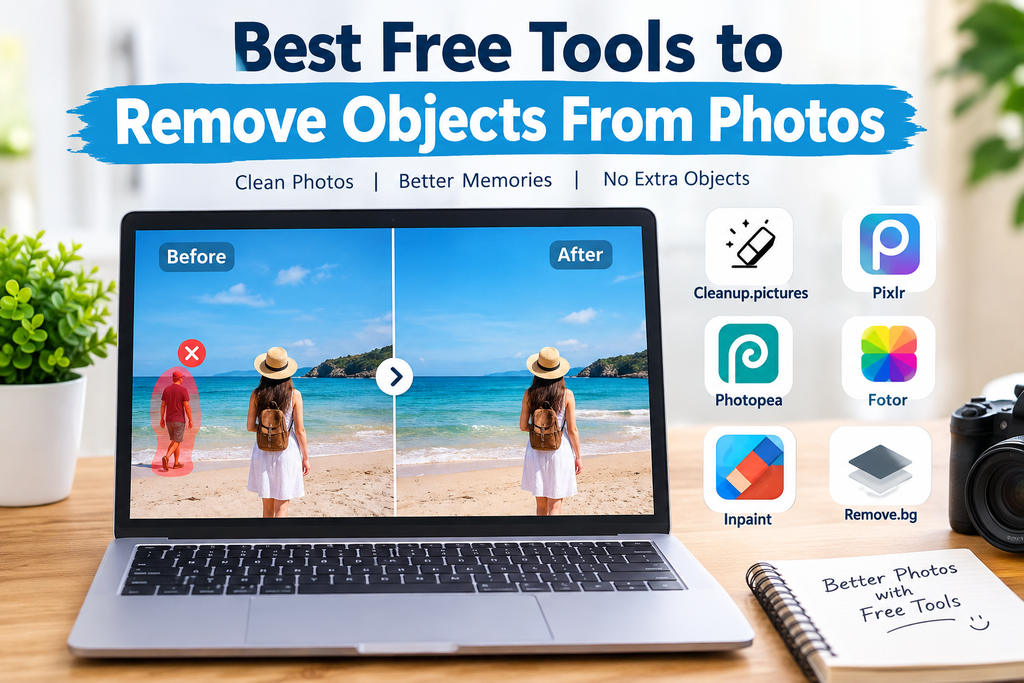
The good thing is that you do not always need expensive photo editing software to fix these problems. There are several free tools to remove objects from photos that can help clean up your images quickly. In my experience, these tools are especially useful when you want a simple result without spending hours learning complicated editing software.
In this article, I will explain some of the best free photo object remover tools, what they are useful for, and how you can choose the right option for your needs.
Why Remove Unwanted Objects From Photos?
Unwanted objects can affect the overall appearance of a photograph. Sometimes the object is small and easy to ignore, but in other situations it can become the main distraction.
For example, imagine taking a beautiful travel photo and noticing a stranger standing directly behind you. You may not want to retake the picture because the lighting, location, and moment were perfect.
Photo object removal tools can help in situations like this. They allow you to select the unwanted area and replace it with surrounding details. Modern tools can sometimes analyze the image and automatically create a replacement that looks natural.
These tools can also be useful for removing small marks, background distractions, cables, signs, reflections, and other unwanted details.
1. Cleanup.pictures
Cleanup.pictures is one of the easiest online tools for removing unwanted objects from photos. Its simple interface makes it suitable for beginners who do not want to learn complicated editing techniques.
You normally upload your image, select the unwanted area with the brush, and let the tool process the image. The tool attempts to fill the selected area using information from the surrounding parts of the picture.
I like this type of tool because there are not many complicated controls to understand. It is useful when you need to quickly remove a small object from a photograph.
The free version can be helpful for basic editing, although some features and output options may have limitations.
2. Pixlr
Pixlr is a popular online photo editing platform that offers more than simple object removal. It provides different editing tools that can be useful for people who want additional control over their photographs.
Depending on the available features and editor you use, Pixlr can help with retouching, adjustments, cropping, and other editing tasks.
For beginners, Pixlr can be a good choice because you can start with simple edits and gradually explore more advanced options.
If you regularly edit photos for websites, social media, or personal projects, having multiple editing features in one place can be convenient.
3. Photopea
Photopea is another useful online photo editor. It works directly in a web browser and has an interface that may feel familiar to people who have used professional image editing software.
One advantage of Photopea is that it offers many advanced editing features. This means you can use it for more than removing objects.
However, beginners may need some time to understand the different tools and menus. If your goal is only to remove one small object, a simpler tool may feel easier.
For users who want more control over the editing process, Photopea can be a valuable free option.
4. Fotor
Fotor is an online photo editing platform that includes several tools for improving images. Depending on the current version and available features, it can provide AI powered editing functions and retouching options.
One reason people may prefer Fotor is its beginner friendly design. You can upload a photo and explore different editing features without needing professional photography knowledge.
Object removal can be useful when you want to clean up a photo before publishing it online. For example, you may want to remove a distracting background object from a product photograph or travel image.
Keep in mind that free features can change over time, so it is worth checking the current limits before starting a large editing project.
5. Inpaint
Inpaint is designed specifically around removing unwanted elements from images. The basic concept is straightforward. You mark the object you want to remove, and the software attempts to reconstruct the area using nearby pixels.
This approach can work well for relatively simple backgrounds. For example, removing a small object from a wall, floor, sky, or similar background can produce a convincing result.
The final quality depends heavily on the photograph. If the object covers an important part of a person’s face or a complicated pattern, the result may require additional editing.
For simple object removal tasks, however, this type of dedicated tool can be very convenient.
6. Remove.bg
Remove.bg is best known for removing backgrounds rather than removing random objects from photographs. Still, it can be useful when your goal is to separate a subject from an unwanted background.
For example, if you have a product photograph and want to remove the entire background, an automatic background remover can save considerable time.
This is slightly different from object removal because the goal is usually to remove the background instead of selecting one specific object.
I would use a background removal tool when the unwanted area covers most of the background, rather than when there is only one small distraction in the image.
How Do Photo Object Removal Tools Work?
Most modern object removal tools use image processing or artificial intelligence to understand the area surrounding the object.
First, you usually select the object with a brush or another selection tool. The software then analyzes nearby pixels, textures, colors, and patterns.
It attempts to create new content that blends with the surrounding area.
Simple backgrounds are generally easier to edit. Removing a person from a plain beach, wall, or sky can sometimes produce a good result because the surrounding area is relatively consistent.
Complex backgrounds can be more difficult. If the unwanted object overlaps buildings, people, detailed furniture, or complicated patterns, the software may create visible mistakes.
Tips for Getting Better Results
In my experience, the tool is only part of the process. The way you select the object can also make a big difference.
First, use a high quality original photograph whenever possible. A larger image usually gives the editor more information to work with.
Second, do not select a huge area unnecessarily. Try to select the unwanted object accurately while giving the tool enough surrounding information.
Third, inspect the edited image carefully. Zoom in and look for repeated patterns, blurry areas, strange lines, or unnatural textures.
If the first attempt does not look right, undo it and try a smaller selection. Sometimes removing an object in several smaller steps produces a better result than trying to remove everything at once.
Are Free Object Removal Tools Safe?
Before uploading personal photographs to any online editing service, I recommend checking its privacy policy and terms of service.
This is especially important if your photograph contains private information, identification documents, children, confidential business material, or other sensitive content.
For ordinary photographs, online tools can be convenient. However, I would avoid uploading sensitive images unless I understand how the service handles uploaded files.
Desktop software can also be an alternative when privacy is a major concern because the editing process may take place locally on your computer.
Free Online Tools vs Professional Software
Free online tools are ideal when you need a quick solution. You can open a website, upload your photograph, remove an unwanted object, and download the result.
Professional software provides much more control. You can work with layers, masks, detailed selections, advanced retouching, and other features.
For everyday users, however, professional software can feel unnecessarily complicated.
If you only want to remove a person from a travel photograph or clean up a small distraction, a free object removal tool may be enough.
Which Tool Should You Choose?
The right tool depends on what you want to accomplish.
If you want something simple, Cleanup.pictures can be a good starting point.
If you want a broader online photo editor, Pixlr or Fotor may be worth exploring.
If you want advanced editing control, Photopea can be useful.
If your main goal is dedicated object removal, Inpaint is another option to consider.
If you need to remove an entire background, Remove.bg can be more appropriate.
I would recommend trying a couple of tools with the same photograph. This gives you a better idea of which interface and results work best for your particular image.
Final Thoughts
Removing unwanted objects from photos no longer requires expensive software or professional editing experience. Free tools have made basic photo retouching much easier for beginners.
Whether you want to remove a person from a travel photo, clean up a product image, remove a distracting sign, or improve an ordinary photograph, there are several free options available.
From simple online object removers to full photo editing platforms, each tool has different strengths and limitations. In my view, the best approach is to start with a simple tool and see whether it produces the result you need.
Most importantly, always keep a copy of your original photograph. Photo editing is much easier when you can experiment without worrying about permanently changing the original file.
With the right free photo object remover and a little practice, you can make many of your everyday photographs look cleaner, simpler, and more professional without paying for expensive editing software.