Related Articles
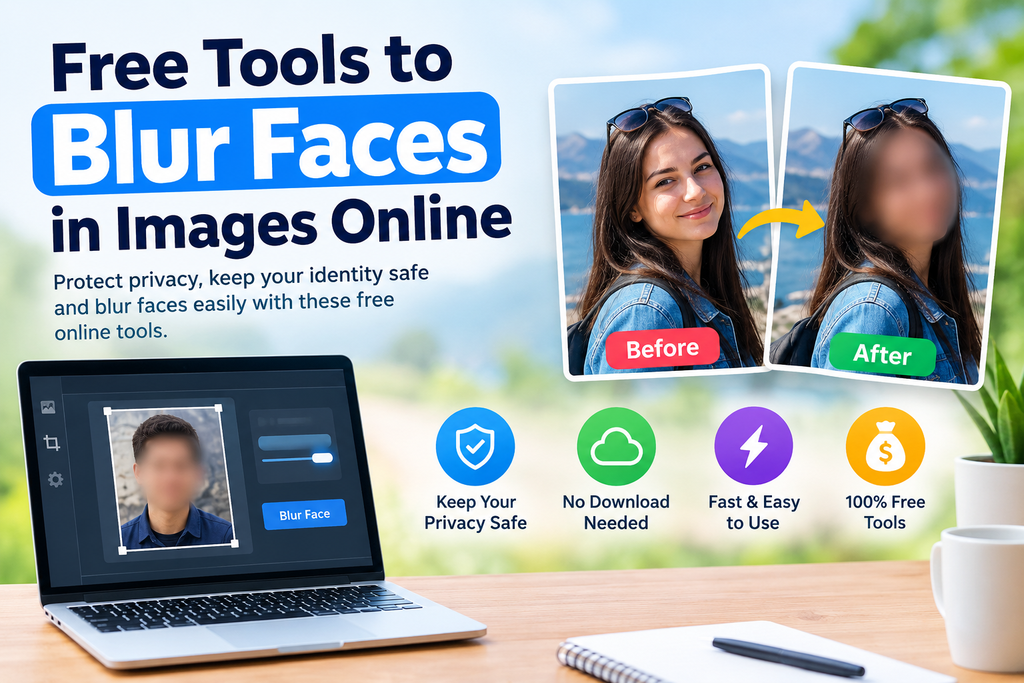
When I share photos online, I always think about privacy before posting them. Sometimes a picture looks perfect, but there may be people in the background whose faces should not be visible. In such situations, knowing how to blur faces in images online can be very useful. The good thing is that I do not always need expensive photo editing software for this task. There are many free online tools that can help blur faces quickly from a web browser.
Free tools to blur faces in images online are especially useful for students, bloggers, website owners, social media users, teachers, and anyone who regularly shares photographs. Most of these tools are simple enough for beginners. You usually upload an image, select the face you want to hide, apply a blur effect, and download the edited picture.
In this article, I will explain how these tools work, what features I look for, and how to blur faces online while keeping the rest of the image looking natural.
Why Blur Faces in Images?
There are several reasons why someone may want to blur a face in a photograph. For me, the biggest reason is privacy. Not everyone wants their picture to appear publicly on websites or social media platforms.
For example, imagine taking a photograph at a busy market, school event, park, or tourist destination. You may want to share the photograph, but other people might appear in the background. Blurring their faces can help protect their privacy.
Face blurring can also be useful when creating tutorials, news style images, educational content, product demonstrations, or screenshots. If an image contains personal information or identifiable people, hiding faces can make the image safer to publish.
Another benefit is convenience. Instead of installing complicated editing software, I can use an online face blur tool directly from my browser.
How Online Face Blur Tools Work
Most free online face blurring tools follow a simple process. First, you upload your photo to the website. The tool then opens the image inside an editing interface.
Some tools can automatically detect faces. This can save time when an image contains several people. Other tools allow you to manually select the area that needs to be blurred.
After selecting a face, you can usually adjust the blur intensity. A light blur may make the face less recognizable while still showing some details. A stronger blur can hide the face almost completely.
Once I am satisfied with the result, I can export the edited image. Depending on the tool, I may be able to choose a format such as JPG or PNG.
Best Free Tools to Blur Faces in Images Online
There are many online image editors available, and their features can change over time. When choosing a free tool, I recommend checking whether it provides a dedicated blur feature, easy controls, good image quality, and a simple download process.
1. Canva
Canva is a popular online design platform that also provides photo editing features. It can be useful when I want to blur part of an image and then continue designing the same image.
The platform is beginner friendly and works through a web browser. It is particularly useful for bloggers and social media users who want to combine face blurring with other design elements.
One advantage of using a design platform is that I can create the complete graphic in the same workspace. However, some advanced editing features may require a paid plan.
2. Adobe Express
Adobe Express provides browser based editing tools for people who want to make quick changes to photographs and graphics. It can be useful when I need a simple editing workflow without installing traditional desktop software.
Adobe products are also well known for their image editing capabilities. Before using any particular feature, I recommend checking the current free options because online tools can change their available features and pricing.
3. Fotor
Fotor is another online photo editing platform that provides a variety of image editing options. It is designed with beginners in mind and can be useful for quick photo adjustments.
When using an online editor for face blurring, I usually look for an editing tool that allows me to control exactly which part of the image is affected. This is important because I do not want the blur to cover unnecessary parts of the photograph.
4. Pixlr
Pixlr is an online photo editor that provides several editing controls directly in the browser. It can be useful for people who want more control than a basic automatic editor provides.
With a browser based editor, I can work on an image without installing software on my computer. This is convenient when I am using a shared computer or working from a device with limited storage.
5. Kapwing
Kapwing is commonly used for online visual content creation and editing. It can be helpful when working with images or other types of digital content.
I find browser based editing especially useful when creating content for websites because I can quickly edit an image and continue working on my content without changing applications.
How to Blur a Face Online
The exact process depends on the tool, but the basic steps are usually similar.
First, open the online photo editing tool in your browser. Look for an option to upload an image and select the photograph from your device.
Next, find the blur or image editing feature. If the tool provides automatic face detection, allow it to identify the faces in the photograph.
If automatic detection is not available, use a selection tool or brush to mark the face manually.
After selecting the face, adjust the blur strength. I recommend starting with a moderate setting and checking the result. If the face is still recognizable, increase the blur.
Finally, inspect the entire photograph before downloading it. Make sure every face that needs privacy protection has been blurred.
Automatic Face Detection vs Manual Blurring
Automatic face detection can save a lot of time. It is particularly helpful when a photograph contains several people. Instead of selecting every face individually, the tool may identify them automatically.
However, automatic detection is not always perfect. Faces that are partially hidden, very small, turned sideways, or located in unusual positions may not be detected correctly.
Manual blurring gives me more control. I can select exactly the area that needs to be hidden. This method takes longer, but it can be more suitable for complicated photographs.
For simple images, I usually prefer automatic detection when it works correctly. For important privacy related images, I always check the result manually.
Tips for Getting Better Results
The quality of the final image depends on how carefully the blur is applied. One mistake I often see is using a very large blur area. If the blur covers hair, clothing, or background objects unnecessarily, the image may look less natural.
I recommend selecting the face carefully. Include enough of the facial area to prevent identifiable details from remaining visible.
Another useful tip is to zoom into the photograph while editing. Small faces can be difficult to select accurately at normal viewing size.
After applying the blur, zoom back out and check the complete image. Sometimes an edit looks good when zoomed in but appears distracting when viewed normally.
It is also important to check the downloaded image. Make sure the final file contains the blur and that the image quality is still suitable for your website or social media post.
Privacy Considerations When Using Online Tools
Although online image editors are convenient, I always pay attention to privacy when uploading photographs. A photo can contain personal information, recognizable people, locations, documents, or other sensitive details.
Before uploading a private photograph, check the website’s privacy policy and understand how uploaded files are handled. Some services may temporarily process uploaded images on their servers.
For highly sensitive photographs, an offline image editor may be a better choice because the image can remain on your own device.
I also recommend avoiding unnecessary personal information in filenames and checking the final image before publishing it publicly.
Why Face Blurring Is Useful for Bloggers
Face blurring can be particularly useful for bloggers and website owners. A travel blogger might photograph a crowded location, while an education website owner might create content around a school or classroom.
Instead of avoiding useful photographs completely, the blogger can sometimes protect people’s privacy by blurring identifiable faces.
This can also make website content look more professional. A carefully edited photograph can communicate the main idea without unnecessarily exposing people who happen to appear in the background.
Is Face Blurring the Same as Removing a Face?
No. Face blurring and face removal are different editing techniques.
Blurring hides facial details while keeping the person and surrounding area visible. Face removal attempts to remove the person or replace the area using another editing technique.
For privacy purposes, blurring is often a straightforward option because it clearly indicates that the face has intentionally been hidden.
Can I Blur Faces on a Phone?
Yes. Many browser based image editing tools work on smartphones as well as computers. This means I can often blur a face directly from my phone without installing a dedicated application.
The process is generally similar. I open the editing website, upload the image, select the face, apply the blur effect, and save the finished photograph.
A larger computer screen can make detailed editing easier, but a phone is convenient when I need to edit a photograph immediately.
Final Thoughts
Free tools to blur faces in images online can make photo privacy much easier. I like these tools because they remove the need for complicated editing software and allow simple changes directly from a browser.
Whether I am preparing a blog post, editing a travel photograph, creating educational content, or sharing an image on social media, blurring faces can help protect people’s privacy.
The most important thing is to check the final image carefully. Automatic face detection can be convenient, but it should not always be trusted without review. I recommend checking every visible face and making sure the blur is strong enough for the purpose.
Online face blur tools are best used when convenience is important and the image does not contain highly sensitive information. For private photographs, it is worth checking the service’s privacy practices before uploading anything.
With the right free online tool and a few careful edits, anyone can blur faces in images quickly while keeping the rest of the photograph clear and useful.