Related Articles
Working with PDF files is part of my everyday digital routine. Whether I am reading study notes, preparing documents, sharing reports, or organizing scanned pages, I sometimes find that a PDF page is displayed sideways or upside down. This can make a simple document surprisingly difficult to read.
Fortunately, I do not always need expensive PDF software to fix this problem. There are several free tools to rotate PDF pages online that make the process quick and simple. Most of these tools work directly in a web browser, so there is usually no need to install complicated software.
In this article, I will share some of the best free tools to rotate PDF pages, explain how they work, and discuss what I personally look for when choosing an online PDF rotation tool.
Why Rotate PDF Pages?
PDF files can sometimes contain pages in the wrong orientation. This is especially common with scanned documents, photographs converted into PDFs, and files created from different sources.
For example, one page might be vertical while another page is sideways. In another situation, an entire scanned document might appear upside down.
Rotating the pages makes the document easier to read and more professional. It can also be helpful before printing or sharing a PDF with other people.
I find PDF rotation particularly useful when working with scanned notes and documents. Instead of recreating the entire PDF, I can simply rotate the affected pages and save the corrected version.
What Should a Good Free PDF Rotator Offer?
Before choosing an online PDF rotation tool, I recommend checking a few basic features. A useful tool should have a simple interface and should not make the process unnecessarily complicated.
The first thing I look for is the ability to rotate individual PDF pages. Sometimes only one page needs to be corrected, so rotating the entire document is not useful.
Another important feature is the ability to rotate pages clockwise or counterclockwise. Some tools also allow users to select multiple pages at once.
I also prefer tools that provide a clear download option after the PDF has been processed. Privacy is another important consideration, especially when working with personal or sensitive documents.
1. iLovePDF
iLovePDF is one of the popular choices I consider when I need to rotate PDF pages online. Its interface is designed for everyday users, so the process is relatively straightforward.
You can upload a PDF, select the pages you want to rotate, change their orientation, and then download the corrected document.
One thing I like about tools such as iLovePDF is that they provide several PDF features in one place. If I need to rotate a page and later merge or compress the document, having multiple tools available can be convenient.
The free version is useful for basic PDF tasks, although some advanced features may have limitations.
2. Smallpdf
Smallpdf is another well known online PDF platform. Its PDF rotation feature allows users to change the orientation of pages without requiring traditional desktop PDF software.
The basic process is simple. Upload your PDF, rotate the required pages, and save the modified file.
I find this type of tool useful when I am working from a computer that does not have dedicated PDF editing software installed. Since the tool works online, the browser handles the process.
Smallpdf also provides several other PDF related features, making it useful for people who regularly work with digital documents.
3. Adobe Acrobat Online
Adobe is closely associated with PDF technology, and its online services provide various PDF related functions.
For users who already use Adobe products, an online Adobe PDF tool can be a familiar option. Depending on the specific feature and account requirements, some functions may be available for free while others may require a subscription.
When choosing an online PDF tool, I always recommend checking the current free feature limits before starting, especially if you need to process many documents.
4. PDF24 Tools
PDF24 Tools is another useful option for people looking for free PDF rotation tools. It offers a collection of online PDF utilities that can be useful for students, office workers, and general users.
The PDF rotation process is designed around selecting a file and changing the orientation of its pages.
One advantage I see with a broad PDF toolkit is convenience. Instead of searching for a different website every time I need to perform a basic PDF task, I can use one platform for several operations.
5. Sejda PDF
Sejda PDF provides online tools for working with PDF documents, including page related operations.
Its interface is designed to make common PDF tasks accessible without requiring advanced technical knowledge. For occasional PDF rotation, this can be a practical choice.
Like other free online services, there may be restrictions on the number or size of documents that can be processed for free. Therefore, I recommend checking the current limits before using it for a large project.
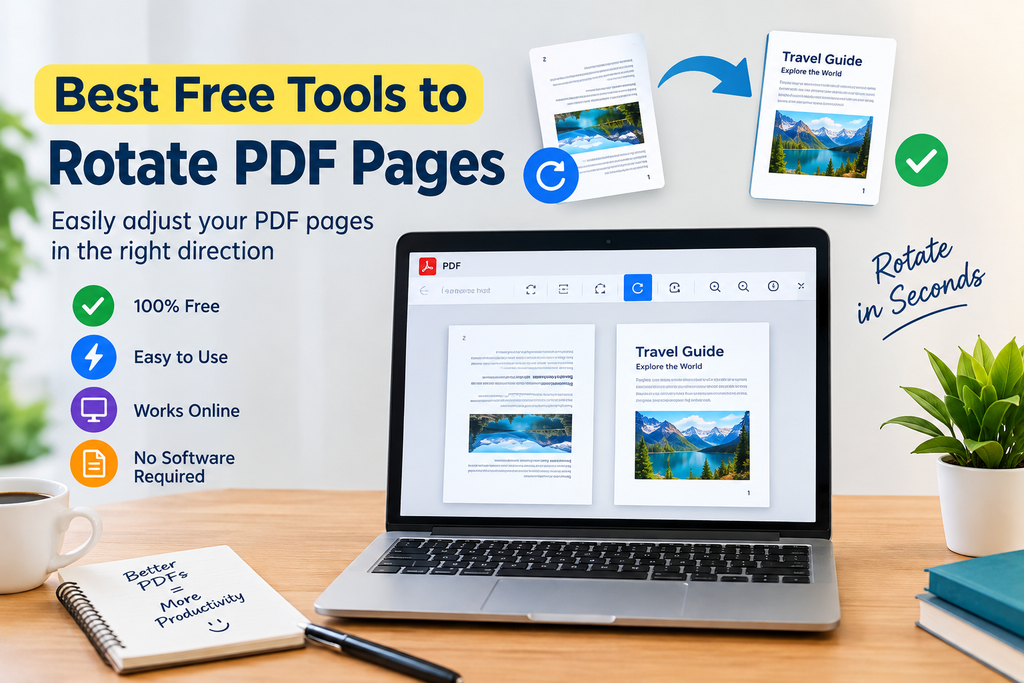
How to Rotate PDF Pages Online
Rotating a PDF page is usually much easier than people expect. Most online tools follow a similar process.
Step 1: Choose a PDF Rotation Tool
First, open a reliable online PDF rotation service. I recommend choosing a tool with a clear interface and a good reputation.
Step 2: Upload Your PDF
Look for the upload button and select the PDF file from your computer. Some services also support dragging the document directly into the browser window.
Step 3: Select the Pages
After uploading the file, you should see previews of the PDF pages. Select the pages that need to be rotated.
This is especially helpful when only a few pages have the wrong orientation.
Step 4: Rotate the Pages
Use the rotation button to turn the selected pages clockwise or counterclockwise. Check the preview to make sure the pages are facing the correct direction.
Step 5: Save the PDF
Once everything looks correct, choose the option to process or save the document. Download the new PDF and open it to make sure the changes were applied properly.
Can I Rotate Only One PDF Page?
Yes, many PDF rotation tools allow you to rotate individual pages. This is one of the most useful features for me because PDF documents can contain mixed orientations.
For example, imagine a 20 page document where only page 12 is sideways. There is no reason to rotate every page. An individual page rotation feature lets you correct page 12 while leaving the other pages unchanged.
This saves time and keeps the document looking professional.
Can I Rotate Multiple PDF Pages?
Many free PDF tools also allow multiple pages to be rotated at the same time. This is useful when an entire section of a document has been scanned incorrectly.
Instead of rotating each page separately, I can select several pages and apply the same rotation.
However, I always recommend checking the pages before downloading the final file. A quick review can prevent mistakes.
Are Online PDF Rotation Tools Safe?
Online PDF tools can be convenient, but I believe privacy should always be considered.
Before uploading a document, check the service’s privacy information and understand how uploaded files are handled. I would avoid uploading highly sensitive documents to an unfamiliar website.
For ordinary documents, an established PDF service may be convenient. For confidential business files, financial documents, or private records, using trusted software on your own computer may be a better approach.
Free Online Tools vs Desktop Software
For occasional PDF rotation, I usually prefer an online tool because it is fast and does not require installation.
Desktop software can be better when I work with PDFs regularly or need advanced editing features. It can also be more convenient when internet access is limited.
The best option depends on what I need. If I only have to rotate a few pages, a free online PDF rotator is usually enough. If I regularly edit, organize, annotate, and create PDF documents, dedicated software may be more suitable.
Tips for Rotating PDF Pages Correctly
I recommend checking the document before and after rotation. This simple habit can prevent problems.
First, make sure you select the correct pages. Second, check whether the page should be rotated clockwise or counterclockwise. Third, preview the result before downloading.
It is also a good idea to keep the original PDF until you have confirmed that the new file works correctly.
If the document is important, open the downloaded PDF in another PDF reader and check several pages. This gives me confidence that the final document has been saved properly.
Which Free PDF Rotator Should You Choose?
There is no single tool that is perfect for everyone. My choice depends on the task.
If I want a simple and familiar PDF workflow, I might consider iLovePDF or Smallpdf. If I prefer a large collection of PDF utilities, PDF24 Tools can be useful. Sejda is another option worth considering, while Adobe’s online PDF services can be attractive to people already familiar with Adobe’s ecosystem.
The important thing is to choose a tool that supports the pages and file size you need while providing suitable privacy and security practices.
Final Thoughts
Rotating PDF pages does not need to be a complicated task. With the best free tools to rotate PDF pages, I can correct sideways or upside down pages in just a few steps.
Online PDF rotation tools are particularly useful because they can save time and do not usually require complicated installations. Tools such as iLovePDF, Smallpdf, Adobe Acrobat Online, PDF24 Tools, and Sejda PDF offer convenient options for different types of users.
From my point of view, the most important things are simplicity, page selection, reliable processing, and privacy. I always recommend checking the final PDF after rotation so that I know every page is correctly positioned.
If you only need to fix a few pages, a free online PDF rotator can be one of the easiest solutions. Instead of rebuilding the document, you can simply rotate the pages, save the corrected PDF, and continue with your work.