Related Articles
PDF files have become a normal part of my daily digital work. I use PDF documents for notes, reports, assignments, business files, forms, and many other types of information. One problem I often notice is that PDF files can easily be copied, shared, or reused without permission. This is where adding a watermark to a PDF can be very useful.
A watermark can help identify the owner of a document and can also show important information such as Confidential, Draft, Sample, Copyright, or a company name. The good thing is that I do not always need expensive software to add a watermark. There are several free tools available online that make the process simple.
In this article, I will explain some of the best free tools to add watermark to PDF. I will also discuss what a PDF watermark is, why it is useful, what features I look for in a watermark tool, and how beginners can add a watermark to a PDF without complicated software.
What Is a PDF Watermark?
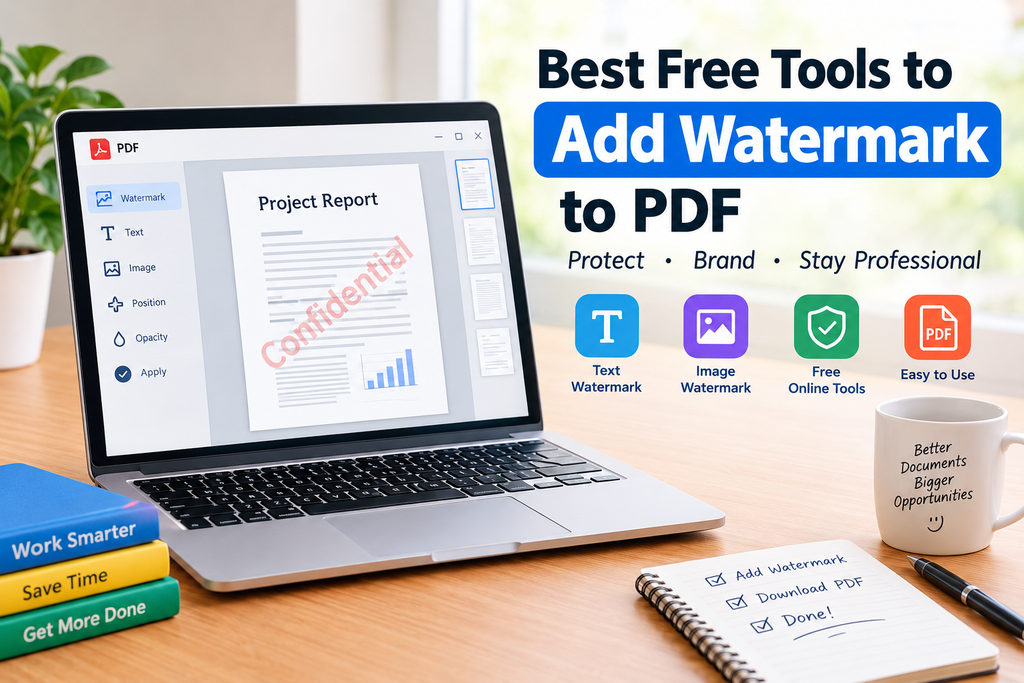
A PDF watermark is text, an image, logo, or other visual information placed over a PDF document. It can appear in the center of a page, in the background, or in another selected position.
For example, if I create an original report, I might add my name or website as a watermark. If I am preparing a document that is not ready for final use, I might add the word Draft. For private documents, I can use Confidential as a watermark.
A watermark does not necessarily prevent someone from copying a PDF, but it makes the ownership or status of the document much clearer.
Why Should You Add a Watermark to a PDF?
There are several reasons why I would add a watermark to a PDF.
The first reason is ownership. If I create an original document, adding my name, brand, or website can help identify where the document came from.
The second reason is branding. Businesses and freelancers can place their company name or logo on documents. This gives the document a more professional appearance.
Another reason is document protection. A watermark such as Confidential can remind readers that the information should not be shared publicly.
Watermarks can also be useful for drafts and samples. For example, I can add Draft to a document that is still being edited. This helps prevent people from confusing an unfinished version with the final document.
Best Free Tools to Add Watermark to PDF
1. Smallpdf
Smallpdf is one of the online PDF tools that I find easy to understand, especially for beginners. It provides several PDF related features through a simple web interface.
A PDF watermark tool can be useful when I want to place text or an image over a document without installing complicated software.
One of the main advantages of using an online PDF tool is convenience. I can open the tool in my browser, upload my PDF, add the required watermark, and save the modified file.
Smallpdf is particularly useful for people who do not regularly work with advanced PDF software and only need basic editing features.
2. iLovePDF
iLovePDF is another popular online platform for working with PDF documents. It provides various PDF management features, which makes it useful when I need to perform several tasks on the same document.
Adding a watermark can be helpful when I want to display my name, company information, copyright notice, or document status.
I also like the fact that online PDF tools generally do not require complicated installation. This can save time when I only need to perform a quick task.
Before uploading sensitive documents to any online service, however, I always recommend checking its privacy and file handling policies.
3. PDF24 Tools
PDF24 Tools provides a collection of PDF utilities that can be useful for students, professionals, and everyday users.
A watermark tool can help me add text or images to a PDF document. This is useful when I need to mark a file as a draft, sample, confidential document, or branded material.
One thing I appreciate about tools like PDF24 is that they are designed around common PDF tasks. Instead of learning complicated professional software, beginners can usually complete simple PDF editing tasks through straightforward controls.
4. Adobe Acrobat Online
Adobe is widely known for its PDF technology, and its online services provide different ways to work with PDF documents.
For people who already use Adobe products, an online PDF workflow can be convenient. Depending on the specific feature and account requirements, some functions may be available with limitations or may require a paid plan.
I recommend checking the current availability of the watermark feature before choosing this option because free features and account requirements can change over time.
Adobe can be a good option for users who want to stay within a well known PDF ecosystem.
5. Sejda PDF
Sejda PDF is another online service that provides different PDF editing features. I find this type of tool useful when I need to make a quick change to a document without installing desktop software.
A watermark can be added to help identify a document or communicate its status. For example, I might use a watermark saying Sample or Not for Distribution.
Sejda can be especially useful for occasional PDF tasks. However, free services may have limitations on file size, daily usage, or available features, so it is important to check the current conditions.
How to Add a Watermark to a PDF Online
The process is usually quite simple. Although the exact interface can be different from one tool to another, the basic steps are similar.
First, I open a PDF watermark tool in my web browser.
Next, I upload the PDF document that I want to edit.
After uploading the file, I look for the watermark option. Most tools allow me to enter text or upload an image.
If I use text, I can enter something such as my name, company name, website address, Copyright, Draft, or Confidential.
After that, I can usually adjust the position, size, transparency, and appearance of the watermark.
I then apply the watermark to the PDF and process the file.
Finally, I download the updated PDF and open it to make sure everything looks correct.
I always recommend checking the final document before sharing it with someone else. A watermark that is too large can make the document difficult to read, while a watermark that is too light may not be useful.
Text Watermark or Image Watermark?
The type of watermark I choose depends on my purpose.
A text watermark is usually the simplest option. I can use my name, website, company name, or a message such as Confidential.
An image watermark is more suitable when I want to use a logo or another graphic. Businesses often prefer image watermarks because they can reinforce their brand identity.
For normal personal documents, I would usually choose a simple text watermark. For business documents, a subtle logo watermark can look more professional.
What Makes a Good PDF Watermark?
In my opinion, a good watermark should protect or identify a document without making the content difficult to read.
The first thing I consider is transparency. A watermark should usually be visible but not overpower the main content.
The second factor is size. I avoid making the watermark unnecessarily large.
Position is also important. A watermark in the wrong location can cover important text, tables, images, or signatures.
I also prefer simple fonts and readable text. There is usually no need to use complicated designs.
For business documents, consistency is important as well. If I use a company logo as a watermark, I try to keep its size and position consistent across different documents.
Are Free PDF Watermark Tools Safe?
Free online PDF tools can be convenient, but I believe users should always think about privacy before uploading documents.
If a PDF contains private information, financial information, personal data, passwords, confidential business information, or other sensitive content, I would carefully review the service’s privacy policy before uploading it.
For highly sensitive files, using trusted desktop software or an offline PDF application may be a better choice.
I also recommend deleting downloaded files from shared computers after completing the task.
Can I Add a Watermark Without Installing Software?
Yes. One of the biggest advantages of online PDF watermark tools is that I can usually perform the task directly from a web browser.
This is particularly helpful when I am using a computer where I cannot install software. Students, office workers, freelancers, and people using public or shared computers can benefit from browser based PDF tools.
However, I still recommend using a trusted service and checking its privacy practices before uploading important documents.
Tips for Creating a Professional PDF Watermark
I have found that simple watermarks generally work better than complicated ones.
I would use a short message instead of a long sentence. For example, my website name or company name is usually enough.
I would also use moderate transparency so that the original document remains readable.
If I am adding a logo, I would make sure the logo is clear and not stretched.
For confidential documents, I would use a clear word such as Confidential so the purpose is immediately understandable.
Finally, I would check every page after applying the watermark. Some documents contain tables or images that can be covered if the watermark is placed incorrectly.
Final Thoughts
Adding a watermark to a PDF does not have to be difficult. With free online PDF tools, I can quickly add a name, logo, website, copyright notice, or document status to a PDF without learning complicated software.
Tools such as Smallpdf, iLovePDF, PDF24 Tools, Adobe Acrobat Online, and Sejda PDF provide convenient options for different PDF tasks. The best choice depends on what I need, how often I work with PDF files, and whether I am working with sensitive information.
For simple personal documents, a basic text watermark is usually enough. For professional documents, a subtle company logo or brand name can provide a more polished appearance.
The most important thing I keep in mind is readability and privacy. A watermark should identify or protect the document without hiding its actual content. I also check the privacy practices of an online service before uploading anything confidential.
If I only need to watermark a PDF occasionally, a free online PDF watermark tool can be a practical solution. It saves time, works directly from a browser, and avoids the need to install complicated PDF software.
Frequently Asked Questions
What is the easiest way to watermark a PDF?
The easiest method is usually an online PDF watermark tool. Upload the PDF, choose the watermark option, add your text or image, adjust its appearance, and download the finished file.
Can I watermark a PDF for free?
Yes, several online PDF services offer free watermarking features, although free plans may have limitations such as file size or usage restrictions.
Can I use a logo as a PDF watermark?
Yes. Many PDF watermark tools allow users to upload an image or logo and place it over the PDF pages.
Should a PDF watermark be transparent?
A slightly transparent watermark is often easier to read because it does not completely cover the original document. The ideal transparency depends on the purpose of the watermark.
Is a PDF watermark permanent?
A watermark applied to a PDF becomes part of the document, but some PDF editing software may allow users to modify or remove it. A watermark should therefore be considered a visual identification or deterrent rather than complete protection against copying.