Related Articles

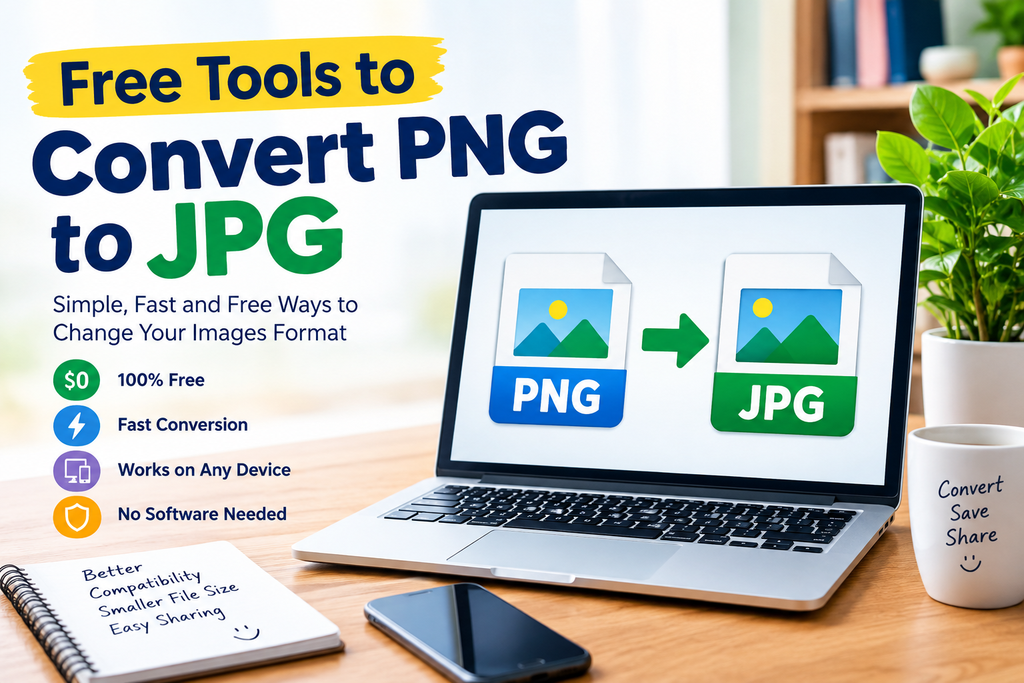
When I work with images for websites, blogs, social media, or everyday projects, I often need to change the image format. PNG is a useful format because it can maintain good image quality and supports transparent backgrounds. However, JPG is sometimes more convenient because JPG files are usually smaller and are widely supported by websites, apps, and devices.
This is why knowing about free tools to convert PNG to JPG can be very useful. You do not always need expensive software or advanced editing skills to convert an image. Many online tools allow you to upload a PNG image, convert it to JPG, and download the result within a few seconds.
In this article, I will explain some simple ways to convert PNG to JPG for free, what to look for in a conversion tool, and how to choose the right option for your needs.
Why Convert PNG to JPG?
Before discussing free PNG to JPG converter tools, I think it is useful to understand why someone would want to change the format.
PNG and JPG are both popular image formats, but they are designed for different purposes. PNG is particularly useful for graphics, screenshots, logos, illustrations, and images that require transparency. JPG is often preferred for photographs and general web images because it can provide a smaller file size.
When I upload images to a website, file size is something I always consider. Large images can take longer to load and may use more storage space. Converting a suitable PNG image to JPG can sometimes reduce the file size and make it easier to share or upload.
However, converting an image does not automatically make it better. The best format depends on the type of image and how you plan to use it.
Online PNG to JPG Converter Tools
One of the easiest methods is using an online PNG to JPG converter. These tools are designed for people who want a quick conversion without installing software.
Usually, the process is simple. You open the converter website, upload your PNG image, select JPG as the output format, and start the conversion. After processing, you can save the JPG file to your device.
I like online converters because they are convenient when I only need to convert a few images. They can be used from a computer, tablet, or smartphone, depending on the website.
When choosing an online tool, I recommend checking whether it supports your image size, whether there are limits on the number of files, and whether the service clearly explains how uploaded files are handled.
Free Image Editing Software
Another option is free image editing software. Programs such as GIMP can open PNG files and save them in JPG format.
This method is useful when I want to make additional changes before converting the image. For example, I might crop an image, resize it, adjust its brightness, or make other basic edits.
The main advantage of desktop software is that you can work on your images without depending on an online service. It can also be useful when you have many images to process.
The disadvantage is that image editing software may require installation and can feel more complicated for beginners. If your only goal is converting PNG to JPG, an online converter may be simpler.
Built In Computer Options
You may not always need a separate conversion website. Some operating systems and image applications provide basic options for opening and saving images in different formats.
For example, you can open a PNG image in an image editing application, choose the Save As or Export option, and select JPG as the output format.
I find this approach useful when I am working on my own computer and do not want to upload an image to another website. It also gives me more control over where the converted file is saved.
The exact steps can vary depending on your operating system and application, but the basic idea is usually the same.
Mobile Apps for PNG to JPG Conversion
Many people now manage images using smartphones, so mobile apps can also be useful for converting PNG images to JPG.
A typical image converter app allows you to select an image from your gallery, choose JPG as the output format, and save the converted file.
Before installing an app, I recommend checking its permissions, reviews, developer information, and privacy policy. A simple image conversion task should not require unnecessary access to personal information.
For occasional conversions, an online tool accessed through your mobile browser may be enough. If you frequently convert images, a trusted image conversion app can be more convenient.
How to Convert PNG to JPG Online
The basic process is quite easy. Although different websites may use different interfaces, most follow similar steps.
First, choose a reputable free PNG to JPG converter.
Next, upload the PNG image from your computer or mobile device.
After uploading the image, select JPG or JPEG as the output format if the website provides multiple choices.
Start the conversion process and wait for the tool to finish.
Finally, download the converted JPG image and check the result before using it.
I always recommend opening the converted image after downloading it. This allows you to confirm that the image looks correct and that the file has been saved properly.
PNG vs JPG
Understanding the difference between PNG and JPG can help you decide when conversion makes sense.
PNG generally works well for images that require transparency, sharp graphics, text, screenshots, and illustrations. It uses lossless compression, which helps preserve image information.
JPG is commonly used for photographs and other images where a smaller file size is important. JPG uses lossy compression, which means some image information can be removed during compression.
Because of this, I would not convert every PNG image to JPG. If your PNG contains transparency, converting it to JPG may remove that transparency because JPG does not support transparent backgrounds in the same way PNG does.
For photographs and ordinary website images, JPG can often be a practical choice.
Benefits of Free PNG to JPG Converters
There are several reasons why I find free image conversion tools useful.
The first benefit is convenience. You can convert an image without learning complicated editing software.
The second benefit is speed. Most small images can be processed quickly.
Another benefit is compatibility. JPG is supported by almost every modern computer, smartphone, browser, and website.
File size can also be an important advantage. Depending on the original PNG image and the conversion settings, the JPG version may use less storage space.
Free tools are also helpful for students, bloggers, website owners, and casual users who do not want to pay for professional software just to convert an image.
Things to Check Before Using a Free Converter
Not every free conversion website is equally useful. I recommend checking a few things before uploading your images.
First, look at the privacy information. If you are converting personal or sensitive images, understand how the service handles uploaded files.
Second, check the maximum file size. Some free tools have limits.
Third, check whether the tool adds a watermark. A simple PNG to JPG converter normally should not need to add a watermark to your image.
Fourth, look at the output quality. A converter should give you a usable JPG image without unnecessary quality loss.
Finally, be careful with websites that contain confusing download buttons or excessive advertisements. Choose a clean and trustworthy service whenever possible.
How to Maintain Image Quality
Converting PNG to JPG can affect image quality because JPG uses lossy compression. The amount of quality loss depends on the settings used by the converter.
If the tool provides a quality setting, I recommend choosing a reasonable quality level instead of automatically selecting the lowest file size.
For website images, I usually try to find a balance between image quality and file size. A very large file can be inconvenient for websites, while excessive compression can make an image look poor.
It is also a good idea to keep the original PNG file. If you later need the original quality or transparency, you can use the PNG instead of trying to recreate it.
Can PNG to JPG Conversion Reduce File Size?
Yes, it can, although the exact reduction depends on the image.
PNG files can become relatively large, especially when they contain detailed graphics or other information. JPG compression is designed to reduce file size, particularly for photographs.
However, the result is not guaranteed to be smaller in every situation. Some PNG files are already optimized, while certain images may not benefit much from conversion.
If your main goal is reducing file size, compare the original PNG and converted JPG rather than assuming the JPG will always be smaller.
Best Uses for JPG Images
I find JPG particularly useful for photographs, blog images, travel pictures, product photos, social media graphics without transparency, and general website content.
If you are preparing images for a blog, converting suitable PNG files to JPG can sometimes make your media library easier to manage.
However, images containing logos, text, icons, or transparent backgrounds may still be better suited to PNG. Choosing the correct format is more important than simply trying to make every image smaller.
Final Thoughts
Free tools to convert PNG to JPG are useful when you need a quick and simple way to change image formats. You can use an online converter, free image editing software, built in computer applications, or a trusted mobile app.
From my experience, the best method depends on what you are trying to accomplish. If I only need to convert one or two images, an online PNG to JPG converter is usually the easiest option. If I need to edit several images, desktop image editing software can provide more control.
Most importantly, I always recommend checking the final image after conversion and keeping the original PNG file whenever it is important. PNG and JPG each have their own advantages, so the right format depends on the image and how you plan to use it.
By understanding the difference between these formats and choosing a reliable free conversion method, you can convert PNG to JPG quickly without spending money on expensive software.