
Related Articles


Images are an important part of websites, blogs, social media posts, presentations, and many other digital projects. I often work with different image formats, and one of the most common situations I come across is needing to convert a JPG image into a PNG file. JPG is excellent for keeping image sizes smaller, especially when working with photographs, while PNG is useful when I need better quality, transparency, or a cleaner image for a particular project.
The good thing is that I do not always need professional image editing software to change JPG to PNG. There are many online tools that allow me to convert images directly from a web browser. Most of these tools are simple enough for beginners and can save a lot of time.
In this article, I will explain some of the best online tools to convert JPG to PNG, what features I look for when choosing a converter, and how I can convert an image quickly without installing complicated software.
Why Convert JPG to PNG?
Before choosing an online JPG to PNG converter, it is useful to understand why someone might need this conversion.
JPG is a compressed image format that is commonly used for photographs and websites. It can reduce file size, but the compression can affect image quality. PNG uses a different approach and is particularly useful for graphics, screenshots, logos, illustrations, and images that require transparency.
For example, if I have a logo with a transparent background, PNG is usually more suitable than JPG. If I am working with a screenshot containing text, converting it to PNG may also help maintain sharper details.
Another reason to convert JPG to PNG is compatibility with certain design and editing applications. Some projects work better with PNG files, especially when transparency is required.
1. TinyPNG
TinyPNG is one of the popular online image tools that I would consider when working with PNG and JPG images. Its main purpose is image compression, but it can also be useful as part of an image optimization workflow.
The interface is simple, which makes it convenient for beginners. I can upload an image and allow the service to process it without dealing with complicated settings.
One thing I like about simple online image tools is that they reduce the learning curve. If I only need to prepare an image for a website, I usually prefer a tool that does not require professional editing knowledge.
TinyPNG is particularly useful after converting an image when I want to reduce its file size before uploading it to WordPress.
2. Convertio
Convertio is another useful online file conversion platform. It supports many different file formats, including image formats.
The process is straightforward. I can upload my JPG file, select PNG as the output format, and start the conversion. Once the process is completed, I can save the converted image to my device.
One benefit of using a multi purpose converter is that I can use the same website for different file conversion needs. This can be helpful when working with documents, images, audio files, or videos.
For someone looking for an easy JPG to PNG converter online, Convertio can be a practical option.
3. CloudConvert
CloudConvert is another well known online conversion service. It supports a wide range of formats and provides several options for controlling the conversion process.
What makes this type of tool useful is flexibility. Sometimes I do not only want to change the file extension. I may also want to control image quality or other available settings.
The interface may offer more options than a very basic converter, but it is still manageable for normal users. I would recommend checking the available settings before converting an important image because different projects may require different output preferences.
Cloud based converters are especially useful when I am working on a computer where I cannot install additional software.
4. FreeConvert
FreeConvert is another online tool that can be used for image conversion. It supports JPG and PNG along with several other formats.
I find tools like this useful when I want to complete a quick conversion without opening an image editor. The general process is simple. I select the JPG image, choose PNG as the target format, process the file, and then save the result.
FreeConvert also provides additional image related features, which can be useful if I need to resize, compress, or modify an image after conversion.
For occasional image conversion, an online tool can be much faster than installing desktop software.
5. iLoveIMG
iLoveIMG is designed specifically around image related tasks. It provides several tools for converting, resizing, compressing, cropping, and editing images.
I like this type of platform because image projects often involve more than one task. For example, I might first convert JPG to PNG, then resize the image, and finally compress it for a website.
Having multiple image tools in one place can save time. It can also make the workflow easier for beginners who do not want to learn complicated editing programs.
If I regularly work with website images, a platform like iLoveIMG can be useful to keep bookmarked.
6. Online Convert
Online Convert is another option for converting different types of files. It provides tools for images and several other file categories.
When I use an online conversion service, I usually check whether the website clearly identifies the input and output formats. A good converter should make it obvious that I am converting JPG to PNG.
This is especially important for beginners because confusing interfaces can lead to selecting the wrong output format.
Online Convert can be useful when I need a quick conversion and do not want to install an application.
7. Adobe Express
Adobe Express provides online tools for working with images and other visual content. Adobe is widely known for creative software, and its online tools are designed to make certain editing tasks easier.
For someone who wants more than simple file conversion, an online creative platform can be helpful. I may want to convert an image and then use it in a social media design, presentation, poster, or blog graphic.
The biggest advantage of using a broader design platform is that I can continue editing the image after preparing it.
How to Convert JPG to PNG Online
The basic process is almost the same on most online image converters.
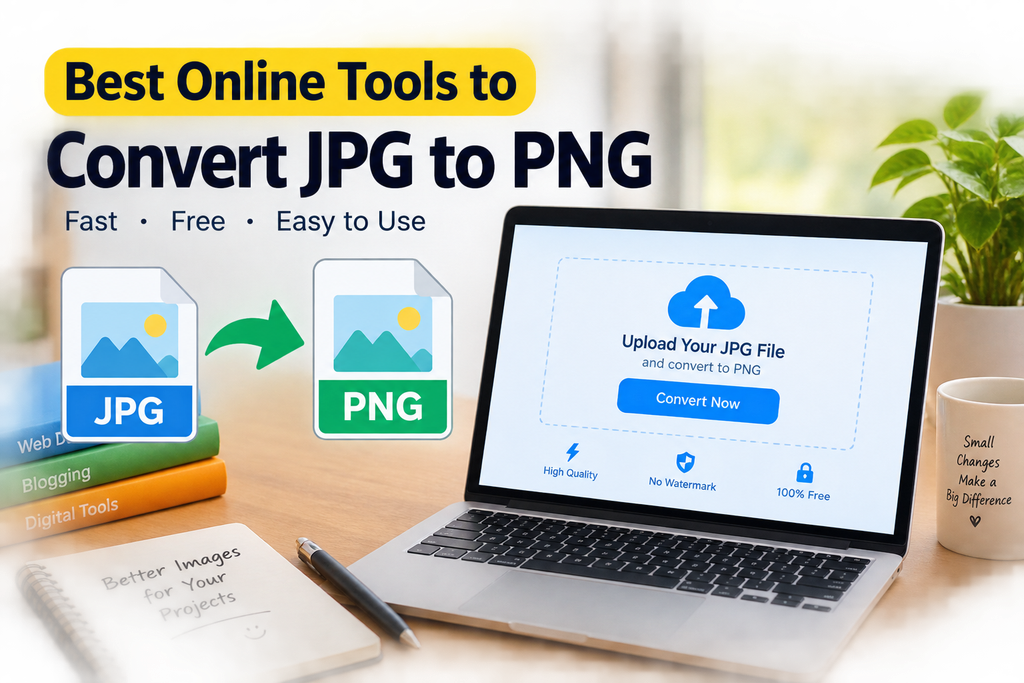
First, I open the JPG to PNG converter in my web browser. I then look for an upload button and select the JPG image from my computer.
After uploading the image, I select PNG as the output format if it is not already selected.
Next, I start the conversion. Depending on the image size and the service, the process may take only a few seconds.
When the conversion is complete, I save the PNG file to my computer.
Before using the converted image, I recommend opening it once to make sure it looks correct. I also check the file size because a PNG image can sometimes be larger than the original JPG.
What Should I Look for in a JPG to PNG Converter?
Not every online image converter provides the same experience. When I choose one, I usually consider several important factors.
Easy Interface
The website should be simple to understand. I do not want to spend several minutes searching for the upload or conversion button.
Image Quality
A good converter should preserve the important details of the original image. This is especially important for screenshots, logos, illustrations, and graphics containing text.
File Size
PNG files can sometimes be larger than JPG files. If I am preparing images for a website, I pay attention to the final file size because large images can affect page loading performance.
Privacy
I also consider privacy before uploading personal or sensitive images to an online service. I avoid uploading private documents or images to websites unless I understand how the service handles uploaded files.
Speed
For normal images, I prefer a tool that processes files quickly. A simple conversion should not require a complicated workflow.
Additional Features
Some tools provide resizing, compression, cropping, and other image functions. These features can be useful when I need to prepare an image for WordPress or social media.
JPG vs PNG: Which Format Is Better?
I do not think one format is always better than the other. The right choice depends on the type of image.
JPG is usually a good choice for photographs because it can produce relatively small files. This makes it useful for websites where image size is important.
PNG is often better for logos, screenshots, illustrations, graphics, and images that require transparency.
If I am creating a website logo with a transparent background, I would normally choose PNG. If I am uploading a large collection of photographs to a website, JPG may be more practical.
Tips for Converting Images for WordPress
If I am converting JPG to PNG for WordPress, I pay attention to more than just the format.
First, I check the dimensions of the image. Uploading an extremely large image when a smaller version is enough can increase the page size.
Second, I check the file size. PNG can be useful for certain images, but it is not automatically the best format for every website image.
Third, I use descriptive file names. Instead of using a name like IMG1234.png, I might use a meaningful name such as jpg-to-png-converter.png.
I also add useful alternative text when uploading images to WordPress. This can help search engines and users understand what the image represents.
Are Online JPG to PNG Converters Safe?
Online converters can be convenient, but I always think about privacy before uploading files.
For ordinary graphics, blog images, screenshots, and public images, an online converter can be a convenient solution. However, I would avoid uploading confidential documents, personal records, or other sensitive images to an unfamiliar website.
I also prefer services with clear privacy information and a good reputation. Before using any online tool regularly, it is worth checking its policies and understanding how uploaded files are handled.
Final Thoughts
Converting JPG to PNG does not have to be complicated. Online tools make it possible to complete the process directly from a browser without installing professional image editing software.
From my experience, tools such as TinyPNG, Convertio, CloudConvert, FreeConvert, iLoveIMG, Online Convert, and Adobe Express can be useful depending on what I need to accomplish.
For a simple conversion, I prefer a tool with a clean interface and a quick process. If I also need resizing, compression, or editing, I look for a platform that provides additional image features.
The most important thing is to choose the right format for the purpose. JPG can be excellent for photographs and smaller file sizes, while PNG can be a better choice for graphics, screenshots, logos, and transparent images.
If I am preparing images for a website, I also pay attention to dimensions, file size, image quality, and descriptive file names. By following these simple practices, I can convert JPG to PNG efficiently while keeping my website images useful and optimized.