Related Articles


Images are an important part of websites, blogs, social media posts, online stores, and many other digital platforms. However, large images can sometimes create problems. They may take longer to upload, use more storage space, and make a website load slowly. This is why I believe that knowing how to resize images online is a useful skill for almost everyone who works with digital content.
The good thing is that we do not always need expensive software to change image dimensions. There are many free tools to resize images online that can help us quickly adjust the width, height, and file size of an image. Most of these tools work directly in a web browser, so there is no need to install complicated software.
In this article, I will explain how free image resizing tools work, why resizing images is useful, what features I look for in an online image resizer, and how beginners can resize images easily.
What Does It Mean to Resize an Image?
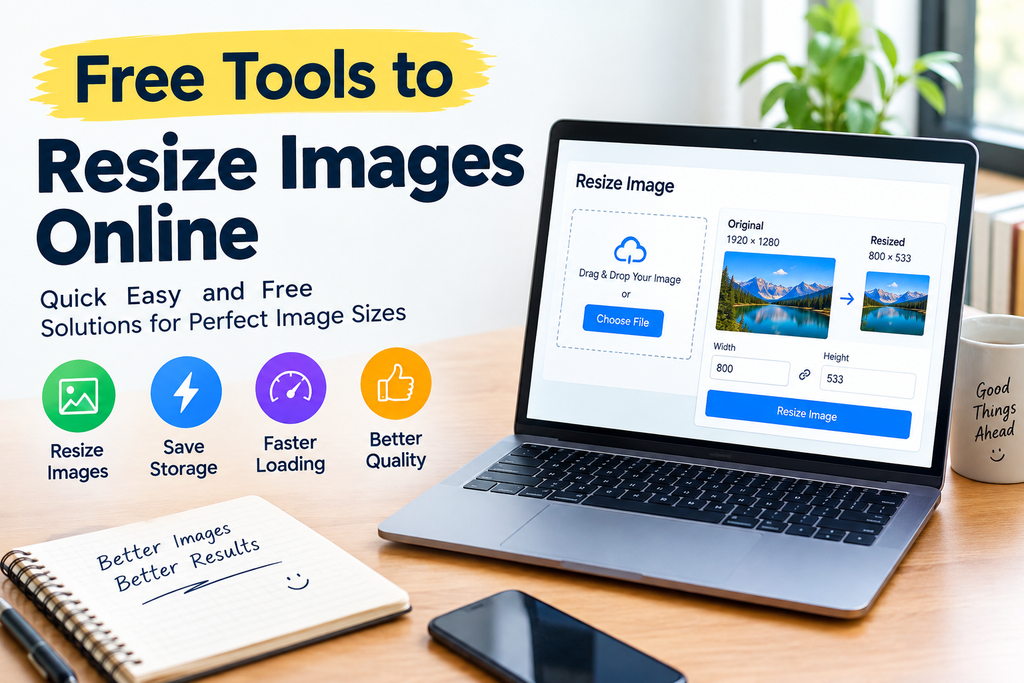
Resizing an image means changing its dimensions. For example, an original photo might have dimensions of 4000 by 3000 pixels. If I want to use that image on a website, I may reduce it to 1200 by 900 pixels.
Resizing does not necessarily mean cropping the image. Cropping removes part of an image, while resizing changes the overall dimensions. When the correct settings are used, resizing can make an image more suitable for websites, social media, documents, and other platforms.
A good online image resizer usually allows me to enter a preferred width or height and automatically adjust the other dimension to maintain the original proportions.
Why Should We Resize Images Online?
There are several reasons why I find online image resizing useful.
The first reason is convenience. I can open a browser, upload an image, select the desired dimensions, and download the resized version.
Another important reason is website performance. Large images can contain unnecessary pixels and large amounts of data. Reducing their dimensions can help create smaller files, which may contribute to faster page loading.
Resizing is also useful when a website or platform has specific image requirements. Some websites recommend particular dimensions for featured images, profile pictures, thumbnails, or banners.
For beginners, free online tools are especially helpful because they provide basic image editing features without requiring professional software.
Best Features to Look For in Free Image Resizing Tools
Not every image resizing website provides the same features. When I choose a free tool, I usually look for a few important options.
Simple Upload
A good tool should make uploading easy. Drag and drop functionality is useful, but a normal file selection button is also enough for basic tasks.
Custom Dimensions
The ability to enter a specific width and height is important. It gives me better control over the final image.
Aspect Ratio Protection
I always prefer tools that can maintain the original aspect ratio. This helps prevent images from looking stretched or squeezed.
Multiple Image Support
If I need to resize several images, batch processing can save considerable time. Instead of resizing every image separately, I can upload multiple files and process them together.
File Format Options
Some online image resizers support formats such as JPG, PNG, and WebP. Having format options can be useful when preparing images for different purposes.
Image Quality Settings
Changing dimensions is only part of image optimization. Some tools also allow me to adjust image quality. This can help reduce file size while keeping the image visually acceptable.
How to Resize an Image Online
The process is usually very simple.
First, I open a free online image resizing tool in my browser. Then I upload the image I want to resize.
After uploading it, I look for the width and height settings. If I want to reduce the image size, I enter the desired width and allow the tool to maintain the original aspect ratio.
For example, if an image is 2000 pixels wide and I want a smaller version for my website, I might choose 1200 pixels as the new width.
Next, I check the preview if the tool provides one. This is useful because I can make sure the image still looks correct.
Finally, I select the resize option and download the new image.
The whole process can take less than a minute for a simple image.
Free Tools to Resize Images Online
There are many websites that provide image resizing services. Some focus mainly on resizing, while others offer additional features such as compression, cropping, format conversion, and basic editing.
When choosing a tool, I recommend checking its interface first. A simple tool is often better for beginners because there are fewer confusing options.
Some online tools also provide batch resizing. This can be helpful for bloggers, students, photographers, and small website owners who regularly work with multiple images.
It is also important to understand the privacy policy of an online service before uploading personal or sensitive images. For ordinary website graphics and public photos, online tools can be very convenient, but private images should always be handled carefully.
How Image Resizing Helps a Website
Website images should have dimensions that match their actual display size whenever possible.
For example, there is usually little benefit in uploading a huge photograph when it will only appear as a small image inside a blog post.
Large images can increase page weight and may affect the user experience, particularly for visitors using slower internet connections or mobile devices.
This is one reason I prefer resizing images before uploading them to WordPress. It helps me keep my media library more organized and avoids using unnecessarily large files.
However, resizing is not the only image optimization technique. Image compression, modern formats, proper dimensions, descriptive filenames, and suitable image placement can also be useful.
Resizing Images for WordPress
If you run a WordPress website, image dimensions are worth paying attention to.
Before uploading an image, I first consider where I will use it. A featured image may require different dimensions from an image that appears inside an article.
For example, a blog featured image might be wider than an image used inside the article. Instead of uploading the original camera photo, I can resize it to a practical web size.
I also avoid making images larger than necessary. If the image will be displayed at a relatively small size, uploading an extremely large original may not provide a meaningful visual benefit.
For a WordPress website, I would also check how the theme displays images on desktop and mobile devices. This helps me choose dimensions that work well across different screen sizes.
Image Resizing for Social Media
Social media platforms often use different image dimensions. A square image may work well for one type of post, while another platform may favor a landscape or portrait format.
Free image resizing tools make it easier to prepare the same image for different platforms.
Instead of changing the original photo, I can create separate resized copies for different uses. This is useful because I can keep the original image untouched while creating versions specifically for websites, social media, or other digital platforms.
Resize Images Without Losing Too Much Quality
One common concern is quality loss. When an image is reduced significantly, some detail may disappear.
In my experience, the best approach is to resize images gradually and check the result before downloading. If a tool provides a quality slider, I avoid reducing quality more than necessary.
It is also important to start with a good quality original image. A low quality image cannot usually become a high quality image simply by changing its dimensions.
For website use, I try to find a practical balance between visual quality and file size. The goal is not always to create the smallest possible file. Instead, the goal is to create an image that looks good while remaining reasonably sized.
Resize Images on a Phone
Another advantage of online image resizing tools is that many work on smartphones.
If I take a photo with my phone and need a smaller version for a website or document, I can open a browser and use an online resizer.
This can be particularly useful when I do not have access to a computer. The basic process remains the same. Upload the image, choose the dimensions, resize it, and save the result.
Before using any online service on a phone, I recommend making sure the website is trustworthy and that the connection is secure.
Common Mistakes When Resizing Images
There are a few mistakes beginners should avoid.
The first is changing width and height independently without maintaining the aspect ratio. This can make an image look distorted.
The second mistake is reducing the image too much. A very small image may look blurry when displayed at a larger size.
Another mistake is overwriting the original image. I prefer keeping the original file and creating a separate resized copy. This gives me the option to create another version later.
Finally, I avoid uploading private or sensitive photographs to unfamiliar websites. Convenience should never come at the cost of privacy.
Are Free Online Image Resizers Safe?
Many online image tools are useful, but I would not assume that every website is equally trustworthy.
Before using a service, I check whether the website uses a secure connection and whether it clearly explains how uploaded files are handled.
For ordinary blog images, graphics, and public photographs, an established online service can be convenient. For private photographs or confidential documents, I would consider using software directly on my computer instead.
Reading the service’s privacy information is a simple step that can help me make a better decision.
Final Thoughts
Free tools to resize images online can make everyday image editing much easier. Whether I am preparing pictures for a WordPress website, social media, a school project, an online store, or a personal document, resizing can help me create images that better fit the purpose.
I find online image resizers especially useful because they are quick and beginner friendly. There is no need to learn complicated editing software just to change an image from one size to another.
The most important thing is to choose suitable dimensions, maintain the aspect ratio, preserve reasonable quality, and avoid uploading sensitive images to websites that I do not trust.
If you regularly publish content online, learning how to resize images properly is a small skill that can make your workflow easier. With the right free image resizing tool, even beginners can prepare clean, appropriately sized images in just a few simple steps.